
In this article, we will review the FluentPro Backup home page layout and settings.
After you sign up for FluentPro Backup and add at least one environment, following the steps described in the Sign up and On-Boarding wizard article, you will get to the FluentPro Backup home page.
Home Page Sections
On the home page, there are three main sections:
- Home section
- Environment statistics and stored data/items limits/actuals and backup usage forecast

Home section includes the list of all environments added to FluentPro Backup. If you click on the environment, the list of actions for the selected environment will be opened:
-
Protection Management:
Data Protection - is used to review the list of backups and their status.
Schedule - is used to set up a backup schedule.
Retention Policy - is used to set us the retention policy for FluentPro Backup operations and stored data. - Operation Details - includes a list of all operations launched in FluentPro Backup, their details, and statuses.
- Credentials - is used to edit or refresh credentials for the selected environment.

Environment statistics section includes the following information for each environment:
- Project Protection (the number of backed-up projects/resources/groups and the number of projects/resources/groups that are not backed up);
- Last backup date/time;
- Next backup date/time.
Stored data and Actual item count section shows the actual stored data and the storage license limit, as well as the actual number of items (Plans in our example).
Backup Usage Forecast option is used to predict the required storage amount for your paid subscription. For more details, please refer to this article: How to choose the correct storage size for your Subscription plan.
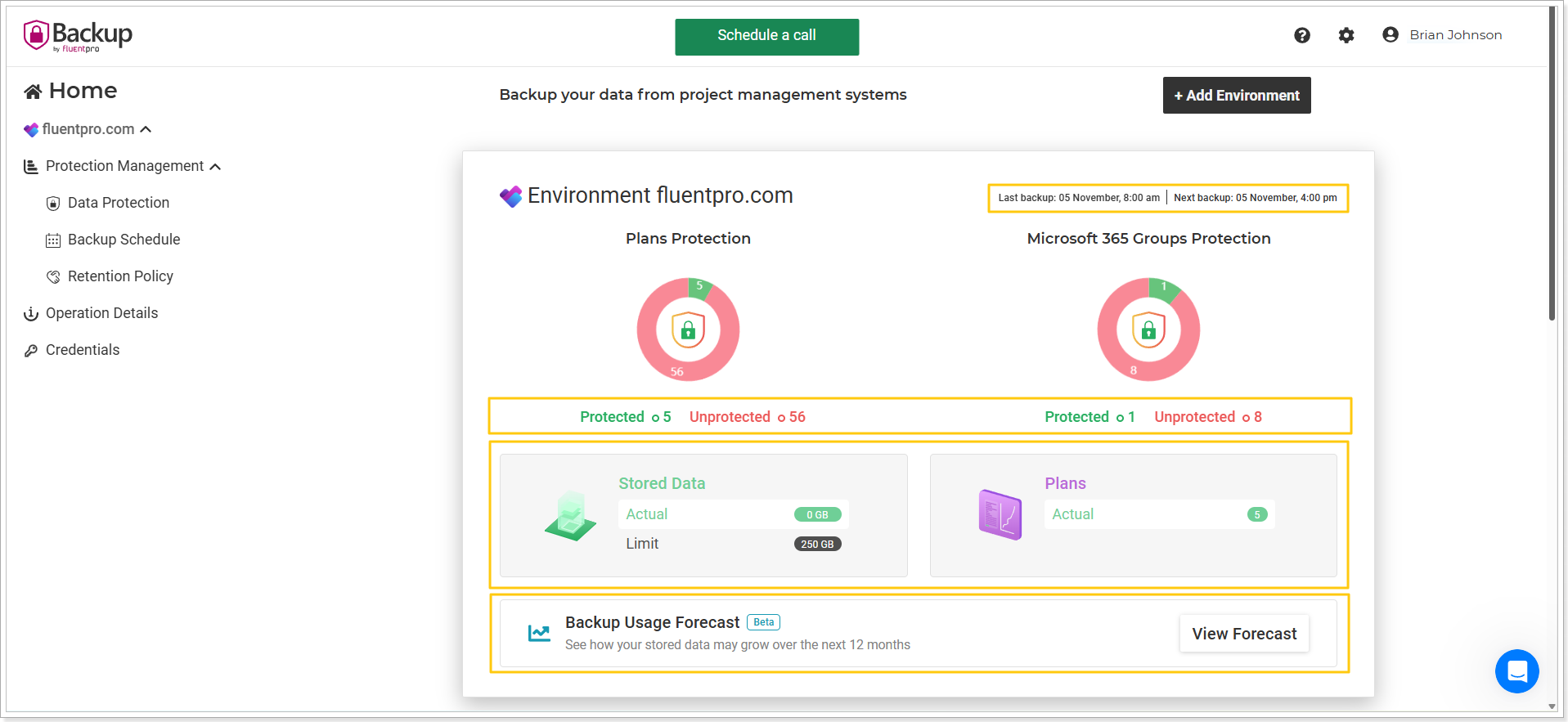
From the Homepage, the following actions are available:
Add Environment
Click the Add Environment button if you would like to add a new environment to your FluentPro Backup. The step-by-step instructions on this process can be found here: Add Environment to your FluentPro Backup.
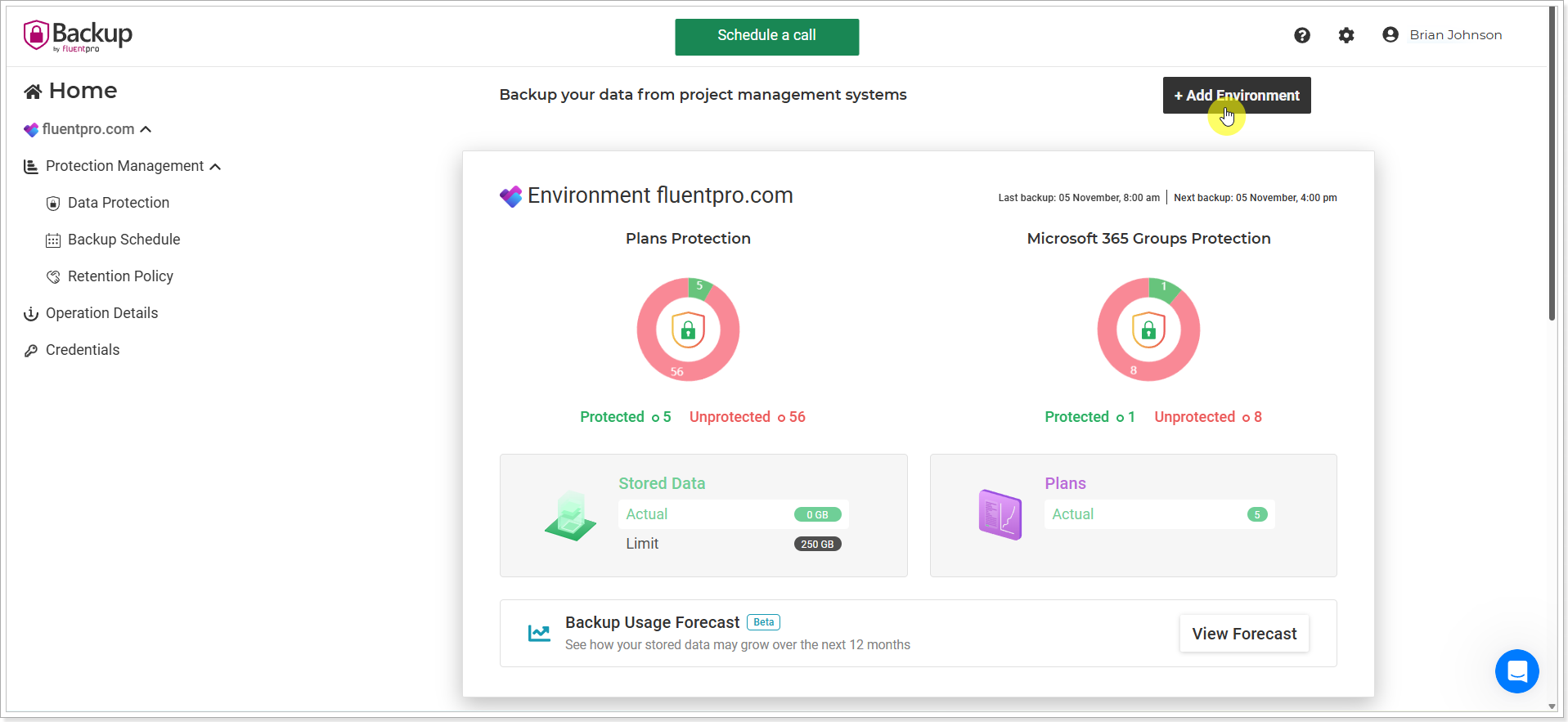
Also, there are a number of additional settings in the upper right part of the page.
FluentPro Backup
This button allows navigating to the Homepage from any FluentPro Backup page.

Settings
The menu under the gear button allows opening the Credentials Manager and User Management pages.

Help
Help menu allows you to navigate to the FluentPro Backup Help Center, Schedule Training, Report a Problem you encountered when using the tool, or fill in the Contact Us form.

My Account
If you click on your account name, the My Account window will open.
Here you can find details on your login and email information. You can also sign out of FluentPro Backup.

Live Chat
📢 Each page in FluentPro Backup has an embedded Intercom live chat option. In case of any questions or issues, it is always possible to launch the live chat and contact the FluentPro Support Team:
