
The next step of the upload process is the upload of Project Plan Templates
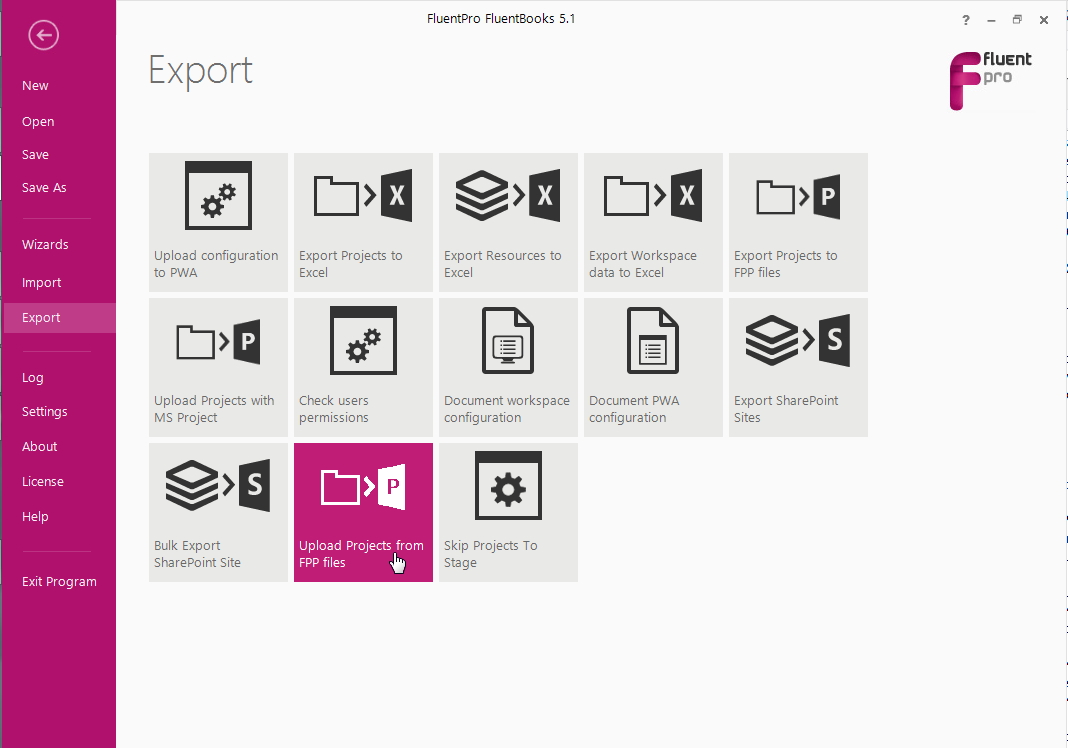
1. Select the Upload Projects from FPP files option from the Export tab to start the upload process.
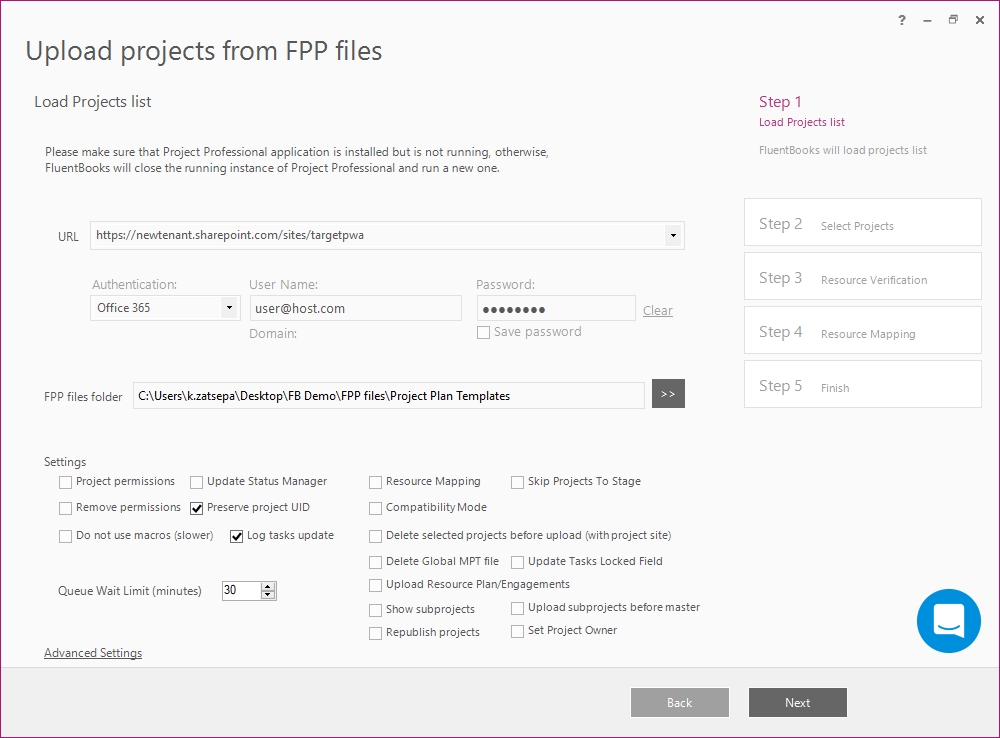
2. Specify the Target PWA URL, login credentials, and the folder to which Project Plan Templates were downloaded.
Also, check the Settings check-boxes if needed. Please refer to the article Upload Projects from FPP files for more information about Advanced Settings.
Click Next to load the Projects list.
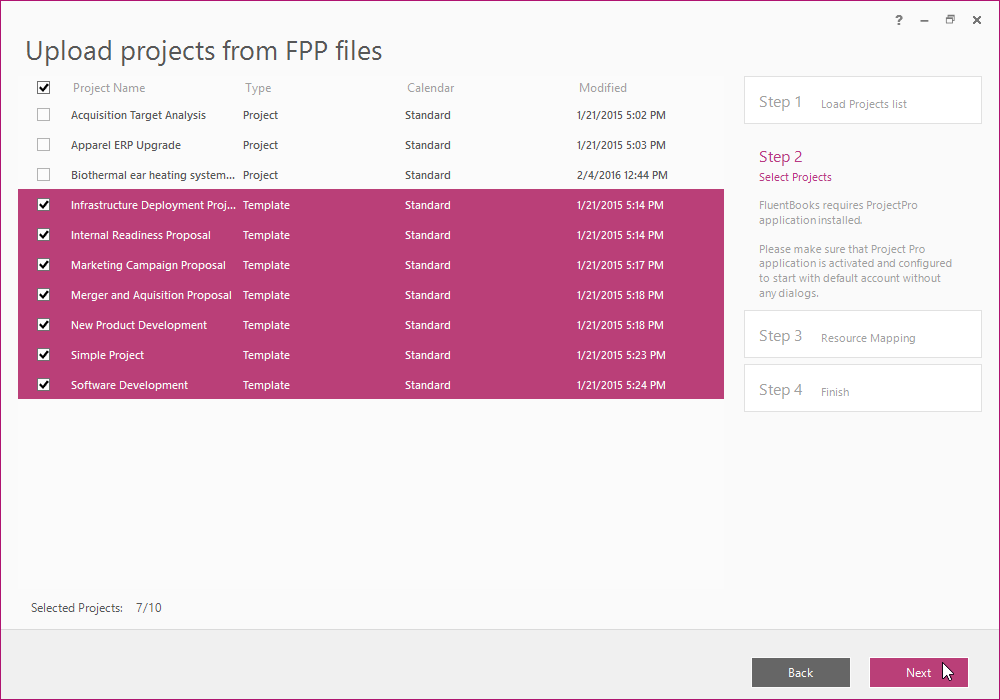
3. Select the Project Plan Templates to be uploaded and click Next to proceed.
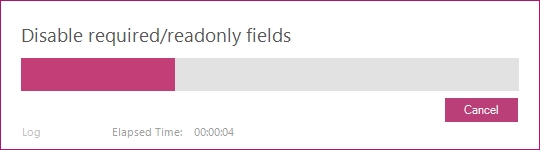
4. FluentBooks will disable all required and read-only fields in the target PWA. The settings will be set back automatically after the upload of the Template finishes.
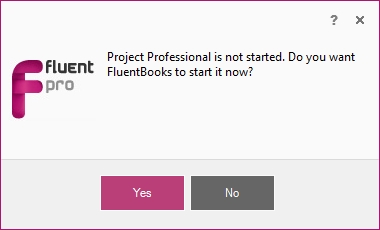
FluentBooks will request to launch Project Professional which is required for Project Plan Templates data upload. Please approve the request to proceed.
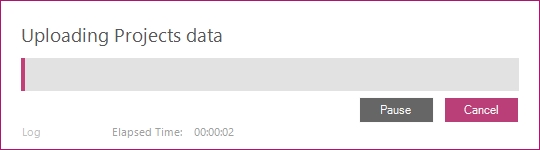
Allow the wizard some time to upload Project Plan Templates data. You can track the process via the Log records.
Please be aware that Project Professional will often switch the focus to it's window so it is advisable not to use the computer during this time to avoid potentially interrupting the process.
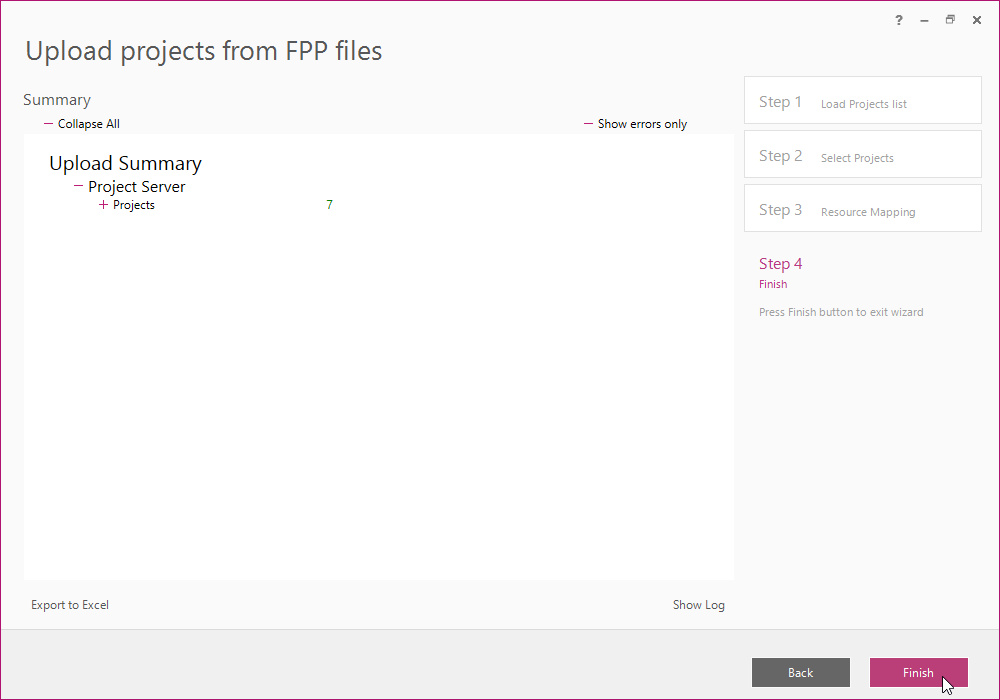
5. Upload Summary will be displayed after the export process is finished and it will show the uploaded items.
Click Finish to close the wizard.
The next step is to re-upload EPTs to set necessary Project Plan Templates