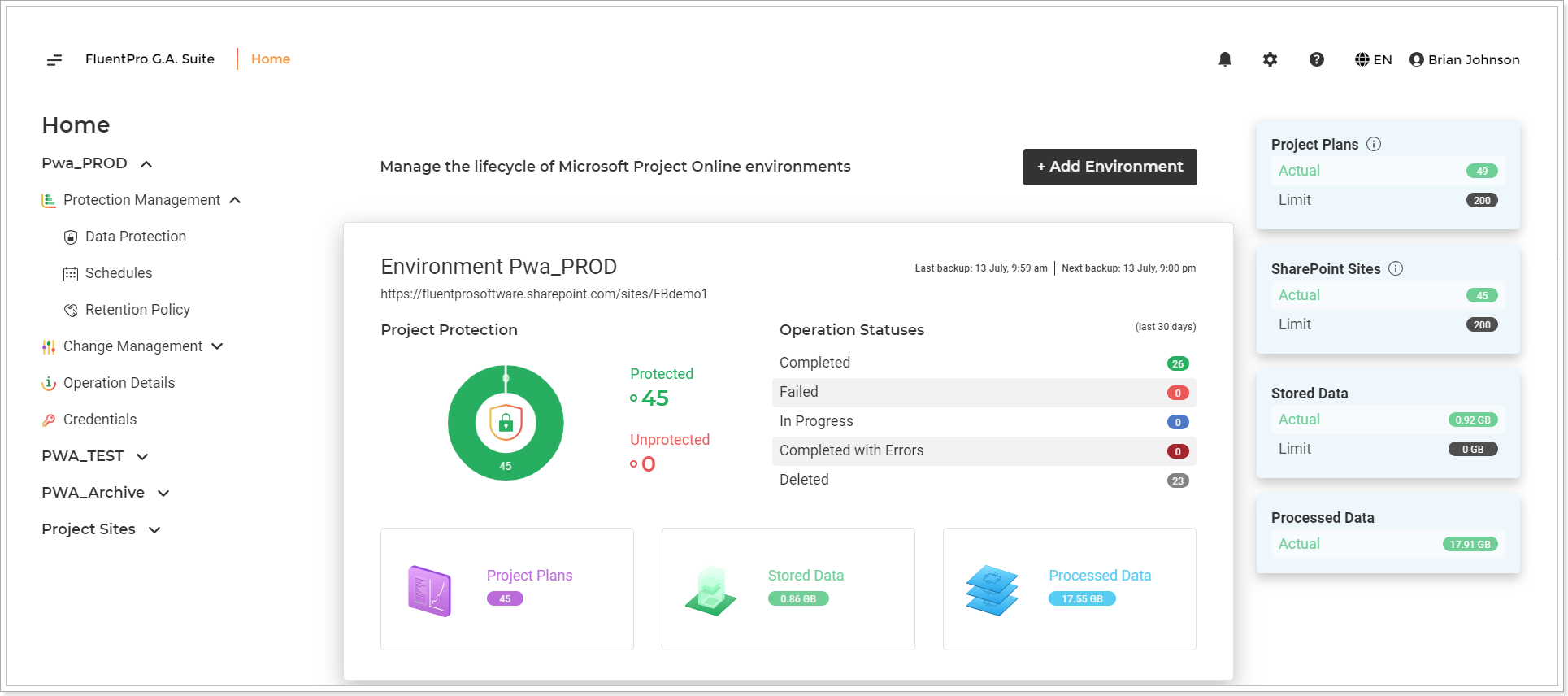
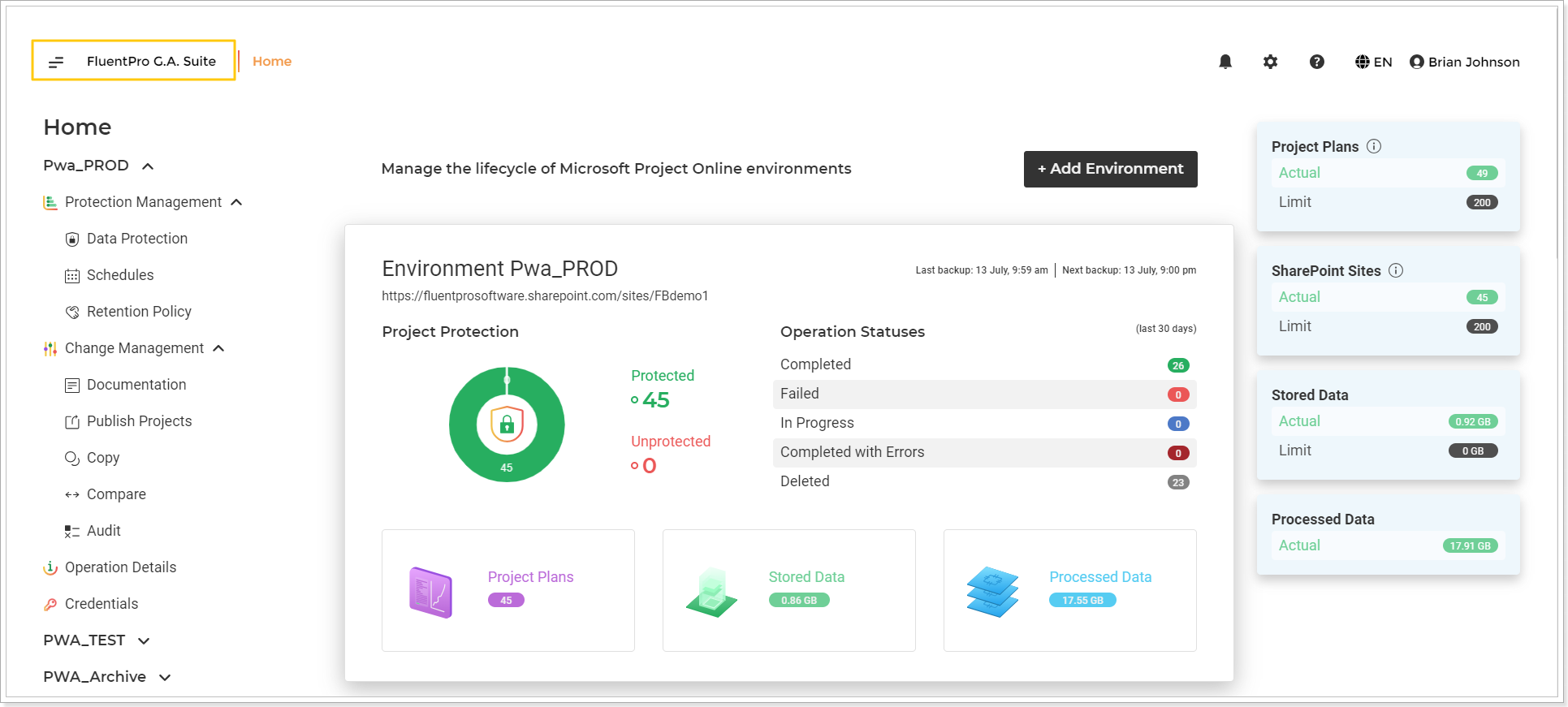
In this article, we will review the G.A. Suite home page layout and settings.
Home Page Sections
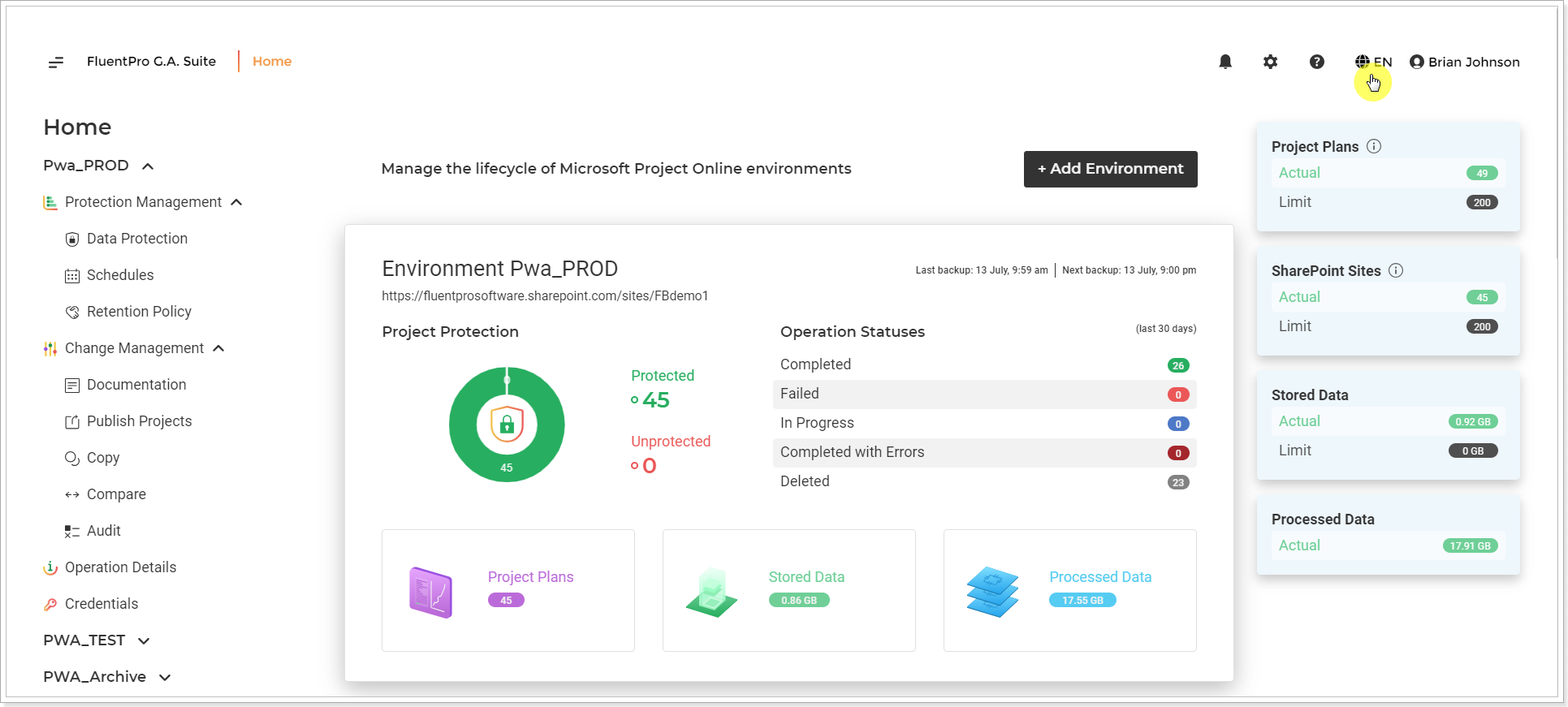
On the home page, there are three main sections:
- Home section
- Environment statistics
- License limits
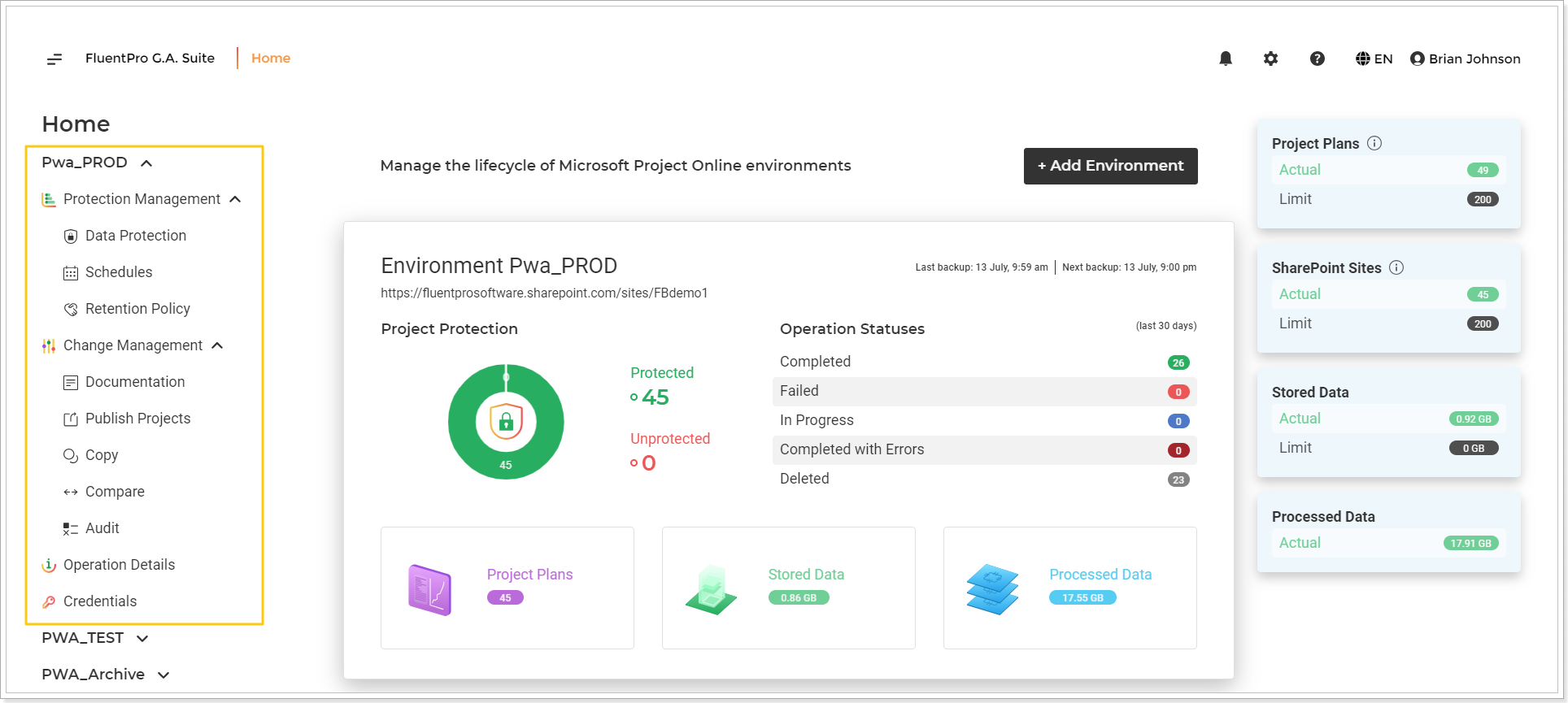
Home section includes the list of all environments added to the G.A. Suite. If you click on the environment, the list of actions for the selected environment will be opened:
- Protection Management: Data Protection - is used to review the list of backups and their status. Schedules - is used to set up backup/copying or documentation schedule. Retention Policy - is used to set us the retention policy for G.A. Suite operations and stored data.
- Change Management: Documentation - is used to document PWA configuration. Publish - is used to publish the Project Plans. Copy - is used to migrate the data from one PWA to another. Compare - is used to compare one PWA to another on the configuration level. Audit - is used to perform a configuration audit.
- Operation Details - includes a list of all operations launched in G.A. Suite, their details and statuses.
- Credentials - is used to edit or refresh PWA credentials.
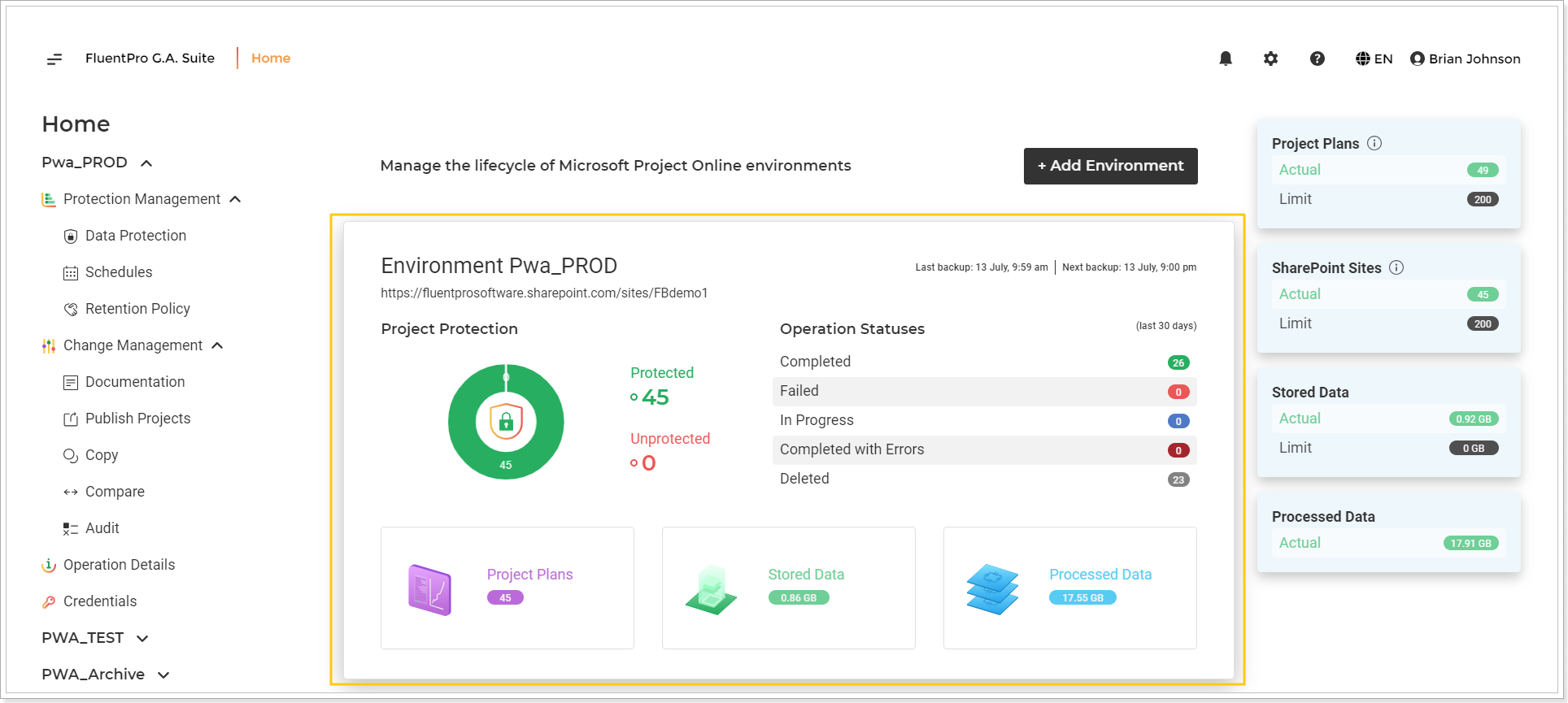
Environment statistics section includes the following information for each environment:
- Project Protection (the number of backed-up projects and the number of projects that are not backed up);
- Last backup date/time;
- Next backup date/time;
- Action Statuses for the last 30 days (clicking on each status you can open the list of G.A. Suite operations of the selected status: Completed, Failed, In Progress, Completed with errors, Deleted);
- Used Project Plans, Stored data volume, and Processed data volume.
The license Limits section includes the information for the license limits of your environments and the actual amount of Projects, Sites, and Stored Data used for all environments.
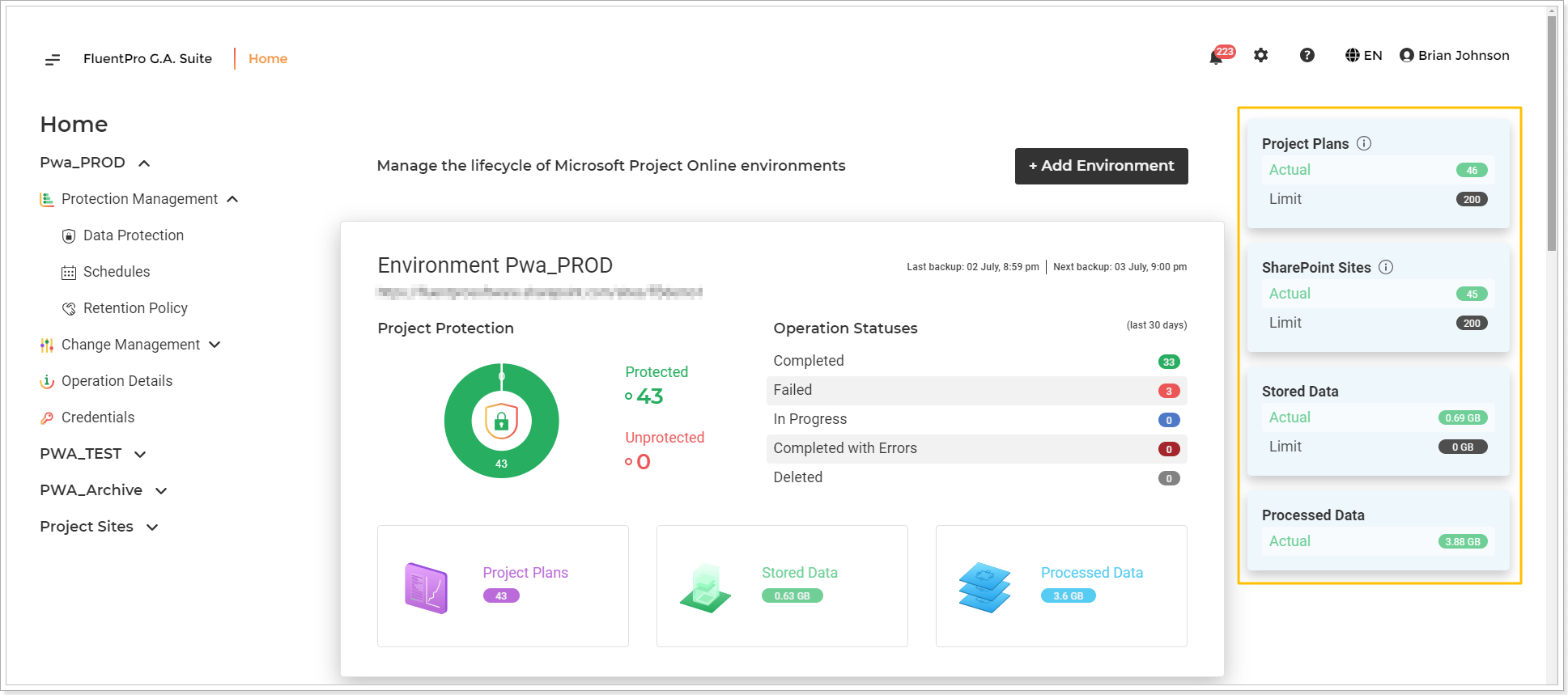
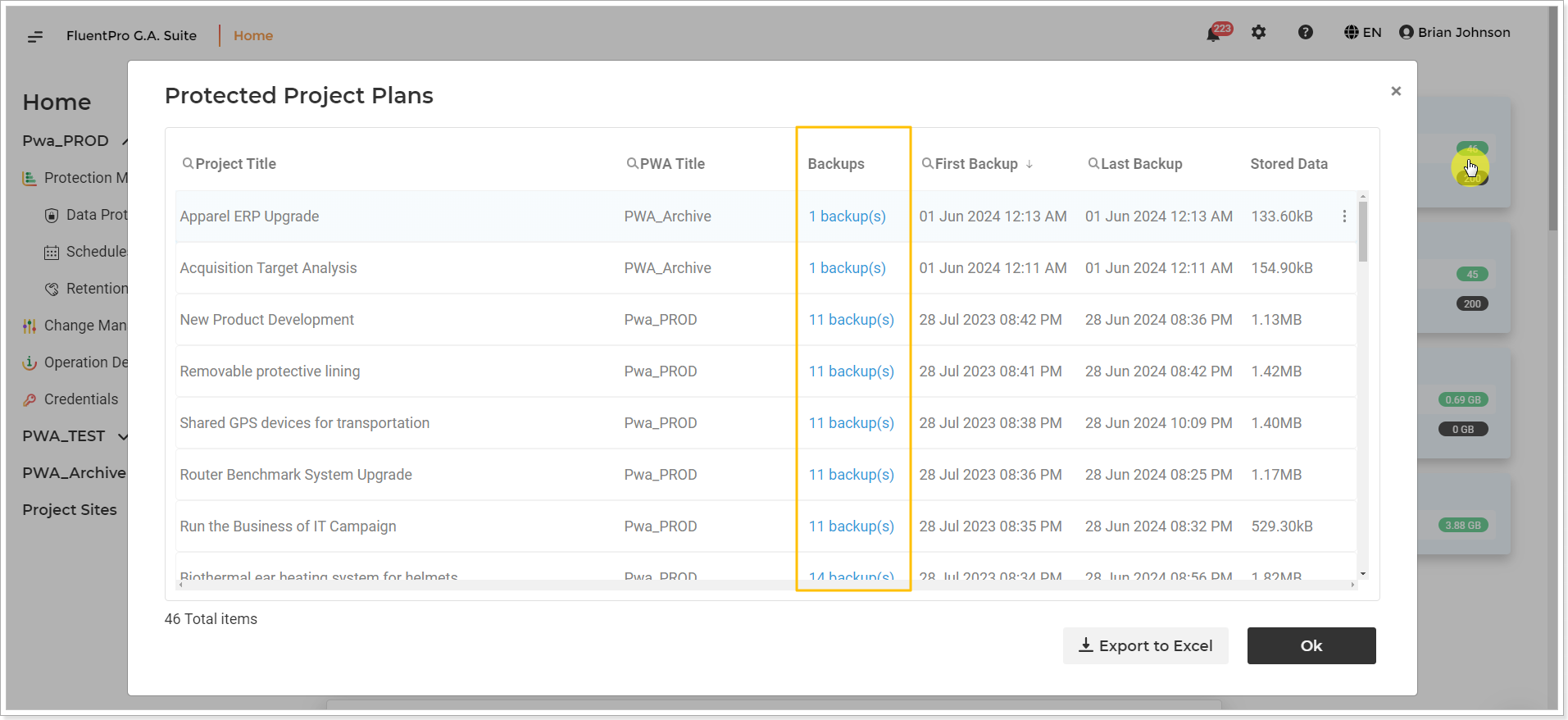
Also, if you click on the Information button in the Project Plans section, you can review a list of unique projects in stored backups and their size. The same can be done for the SharePoint Sites.
From the Homepage, the following actions are available:
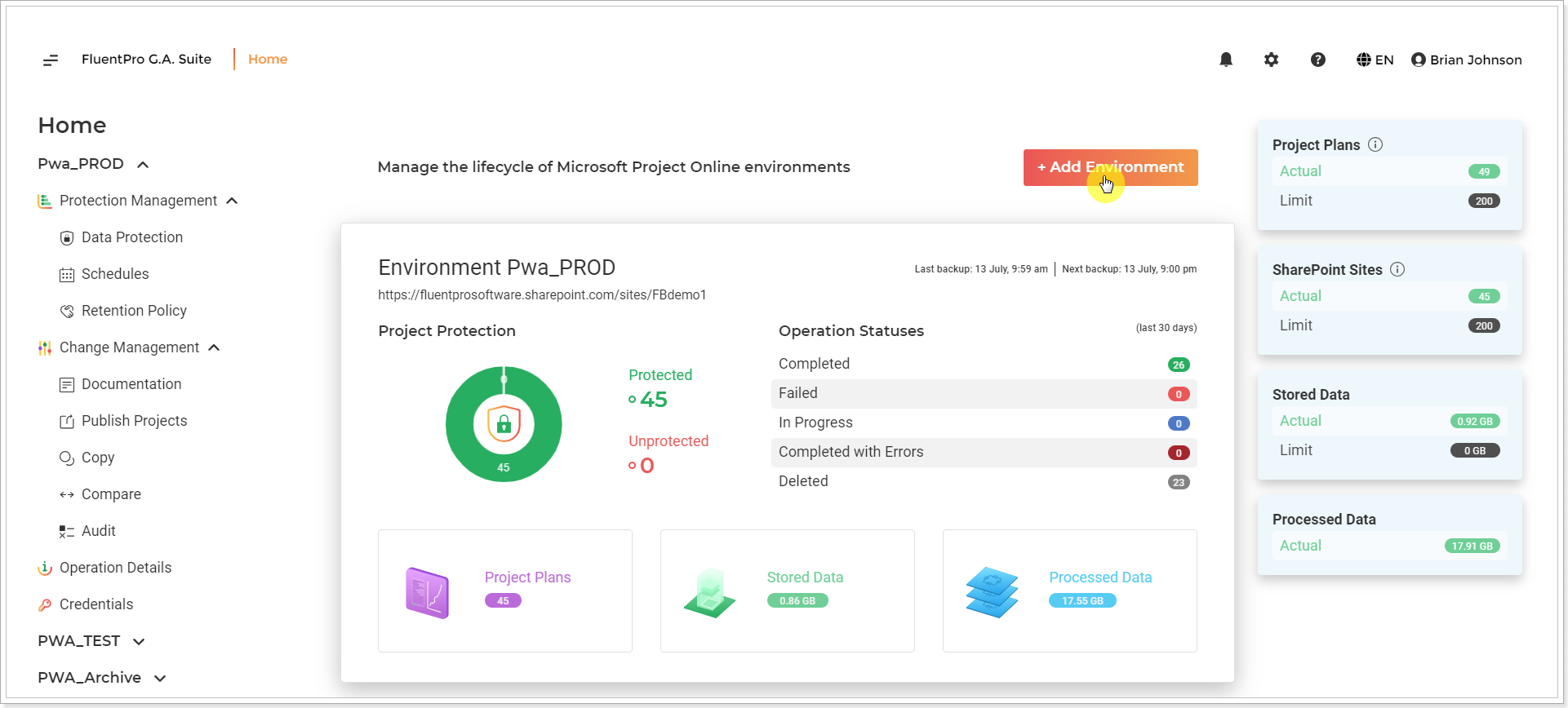
Add Environment
Click the Add Environment button to add a new PWA to your G.A.Suite. The step-by-step instructions on this process can be found here: Add Environment to your G.A.Suite.
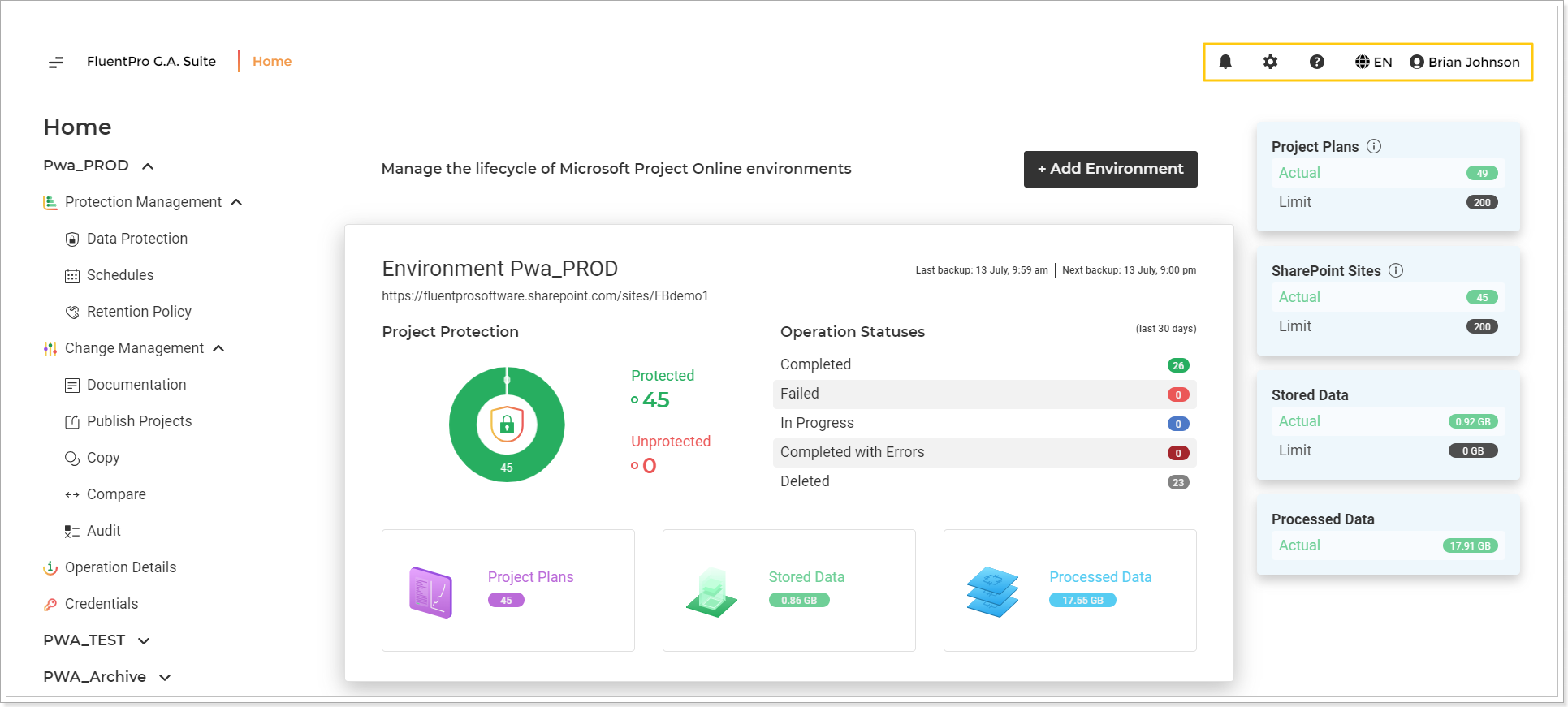
Also, there are several additional settings in the upper-right part of the page. Using the language option, you can choose if the G.A. Suite user interface is in English or French.
G.A.Suite
This button allows you to navigate to the Homepage from any G.A. Suite page.
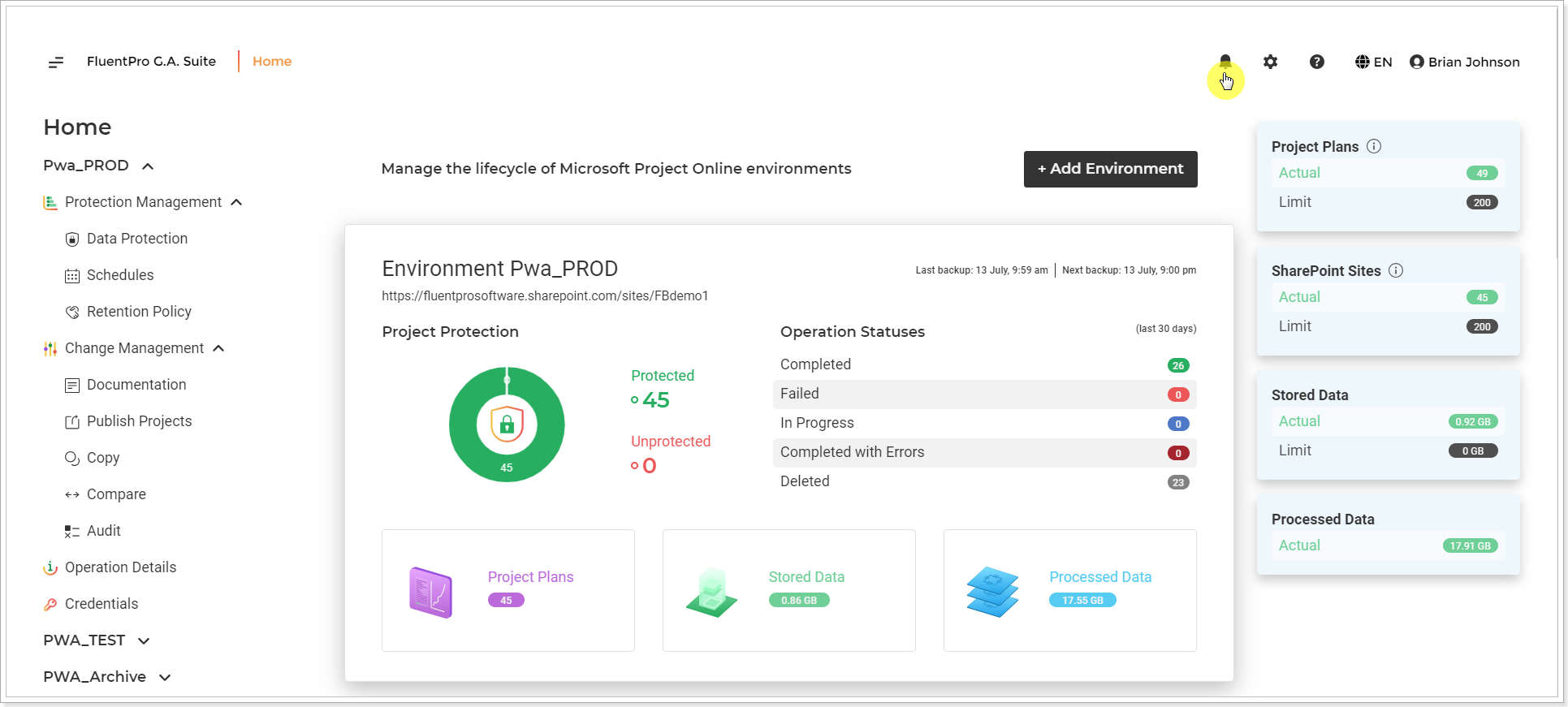
Notifications
The button opens a notification window, where you will see important messages about G.A.Suite performance.
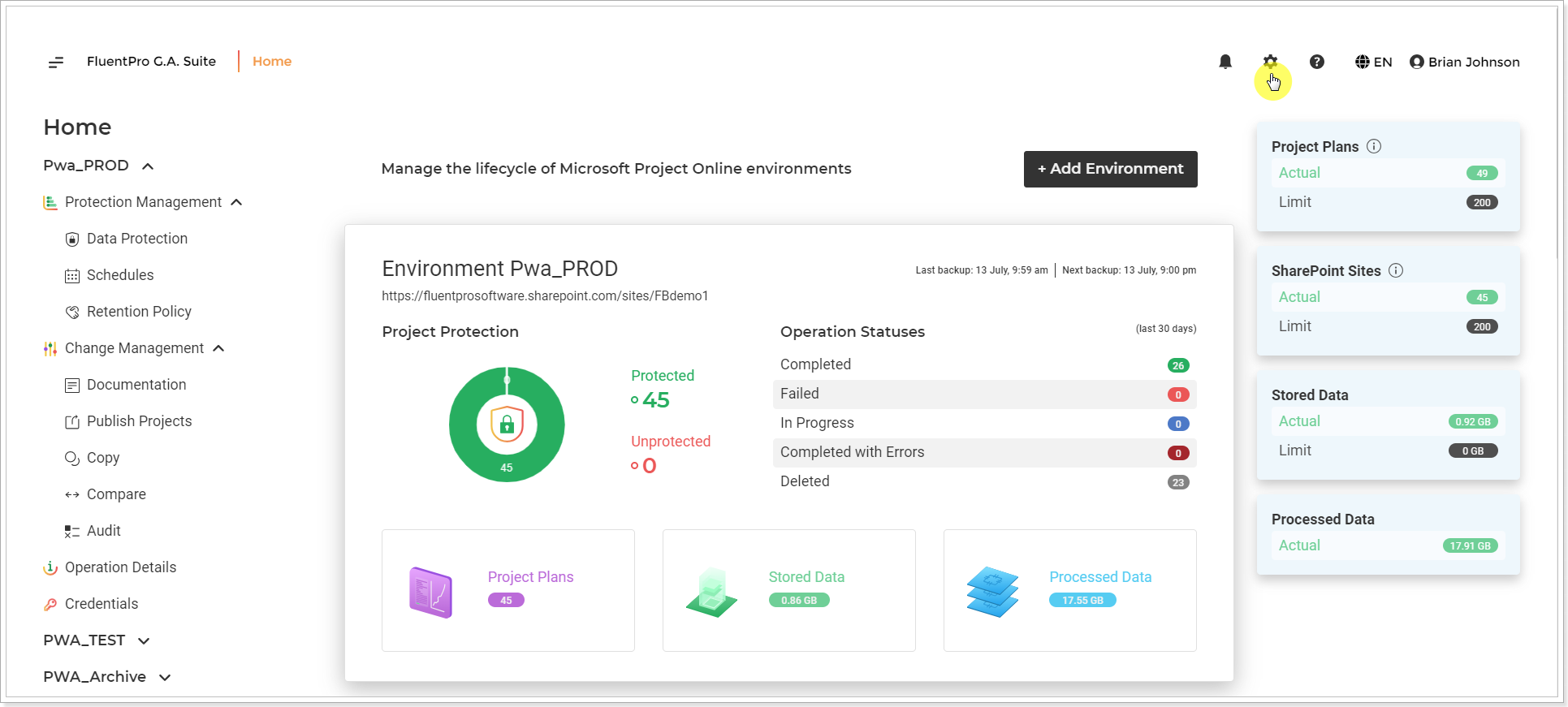
Settings
The menu under the gear button allows opening the Account Management/License, Account Permissions, Account Activity Log, Storage Settings, and OData Settings pages.
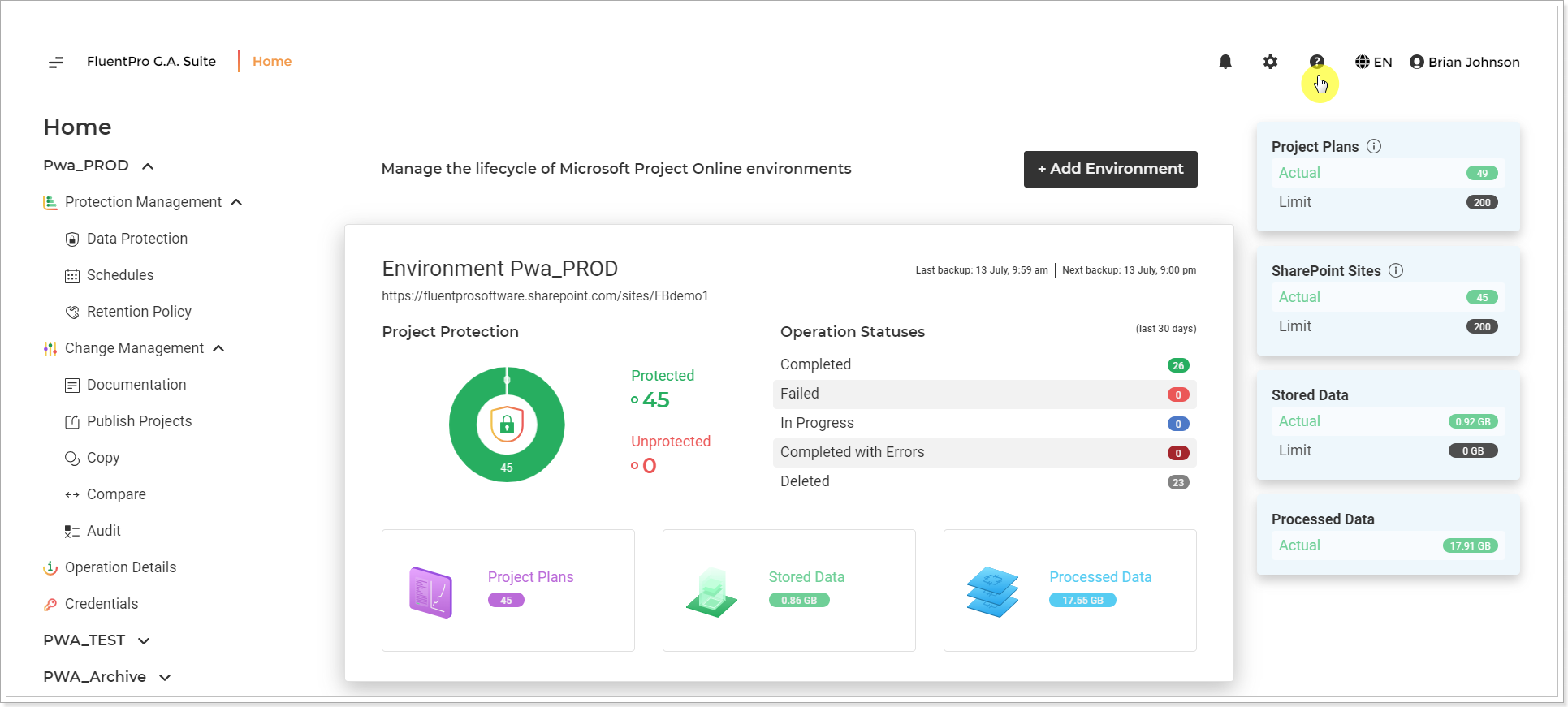
Help
Help menu allows you to navigate to G.A. Suite Help Center, Schedule Training, Report a Problem you encountered when using the tool, or fill in the Contact Us form.
Language
Opening G.A. Suite for the first time, your user interface will be in English or French, depending on your Browser Language. You may always change the G.A. Suite language using the Language selector in the upper-right corner of the page.
My Account
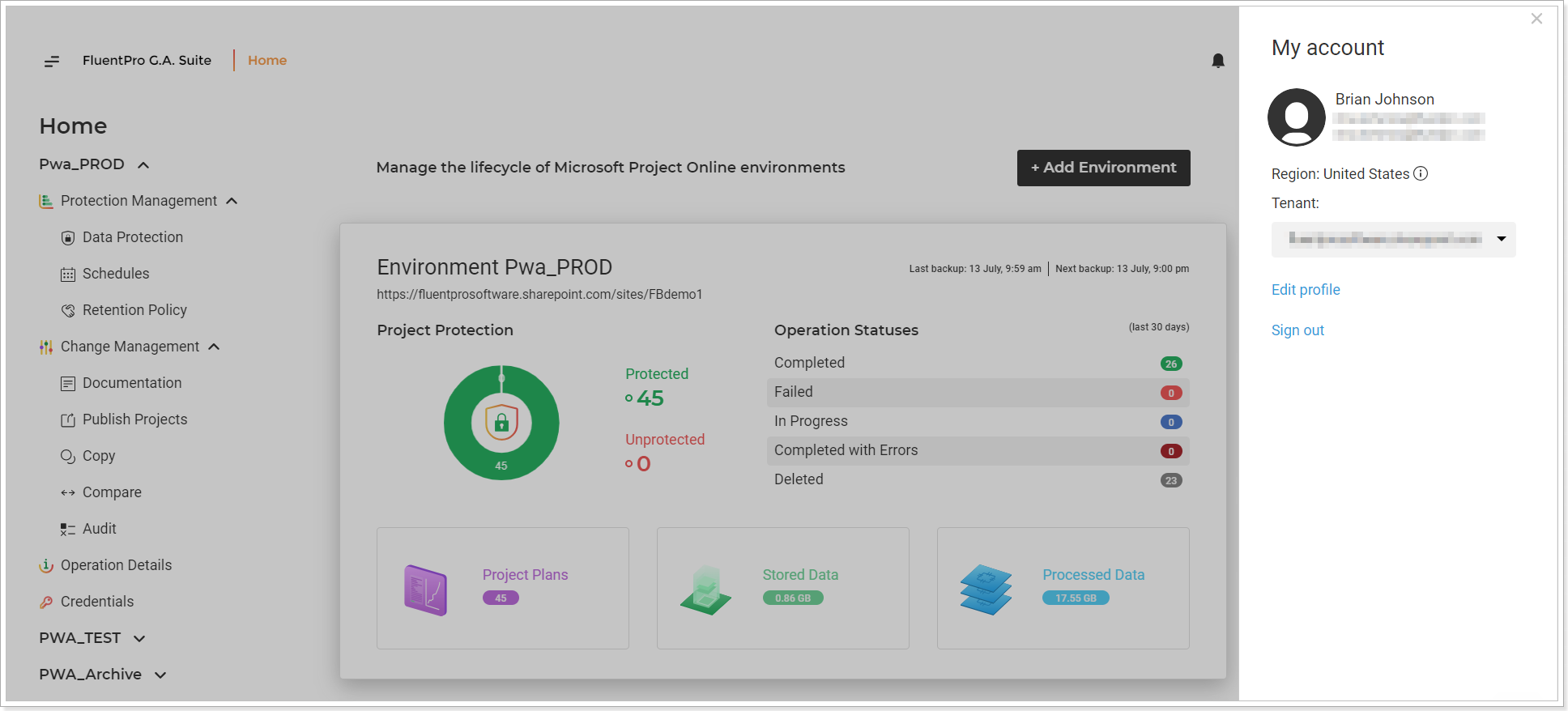
If you click on your account name, the My Account window will be opened.
Here you can find details on your login and email information and your tenant region. Also, you can find the Edit Profile and Change Password options or Sign Out from G.A.Suite.
Delete my account option will delete the G.A. Suite tenant and its data. This option is available for G.A. Suite tenant Administrator only. For more details, please refer to the 'How to delete a tenant' article.
Live Chat
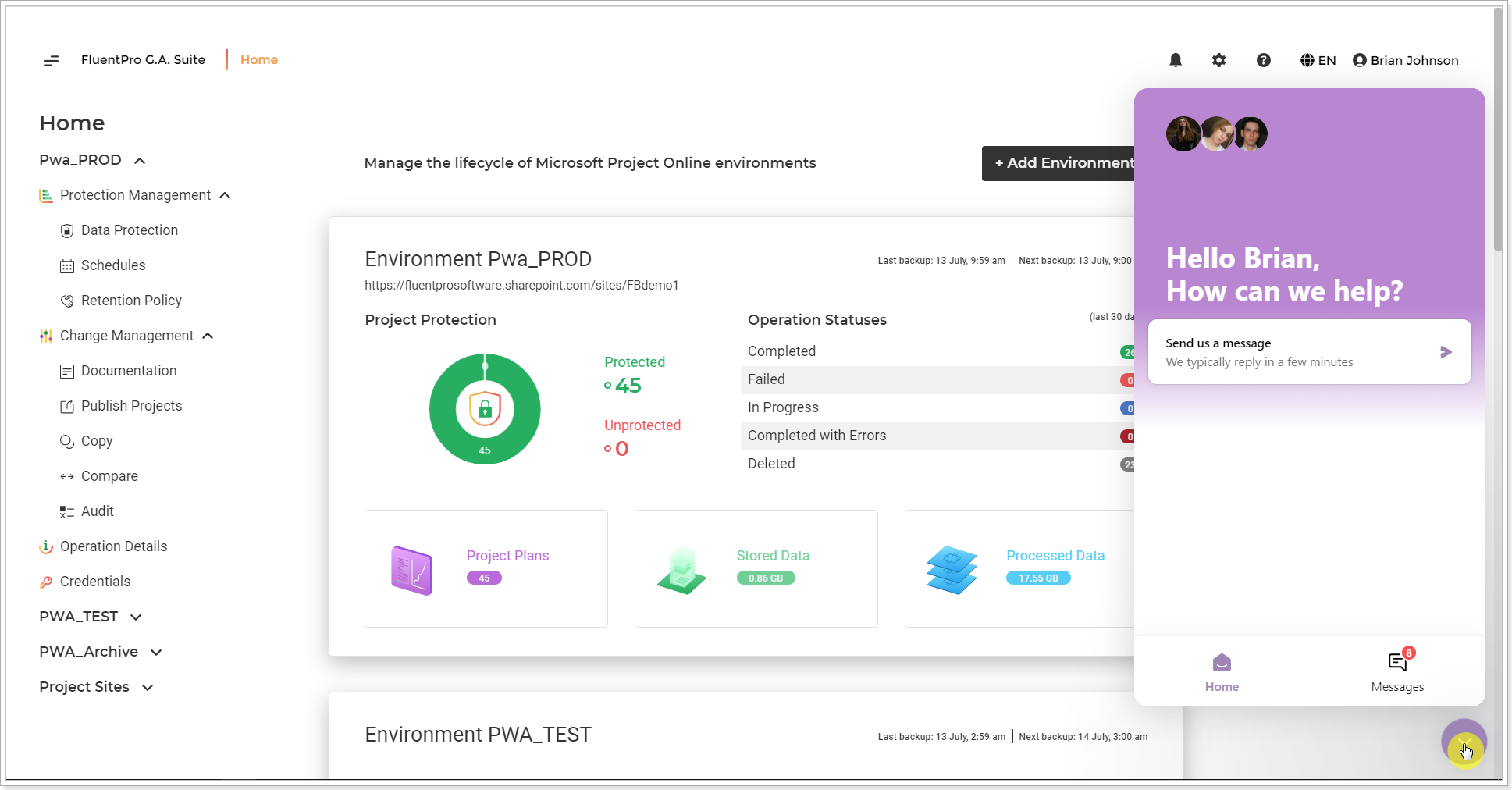
📢 Each page in G.A. Suite has an embedded Intercom live chat option. In case of any questions or issues, it is always possible to launch the live chat and contact FluentPro Support Team: