
In this article, we will review data storage settings.
Default storage
By default, G. A. Suite uses a Storage account configured during setup to store all backup data created by the service.
Three storage types are available for setup storage:
- Amazon S3 bucket;
- Windows Storage;
- Azure Storage.
This storage will be used for backups, logs, etc.
To access Storage Settings:
1. Click the Gear button on the navigational ribbon in the top part of the page.
2. Select Storage settings.
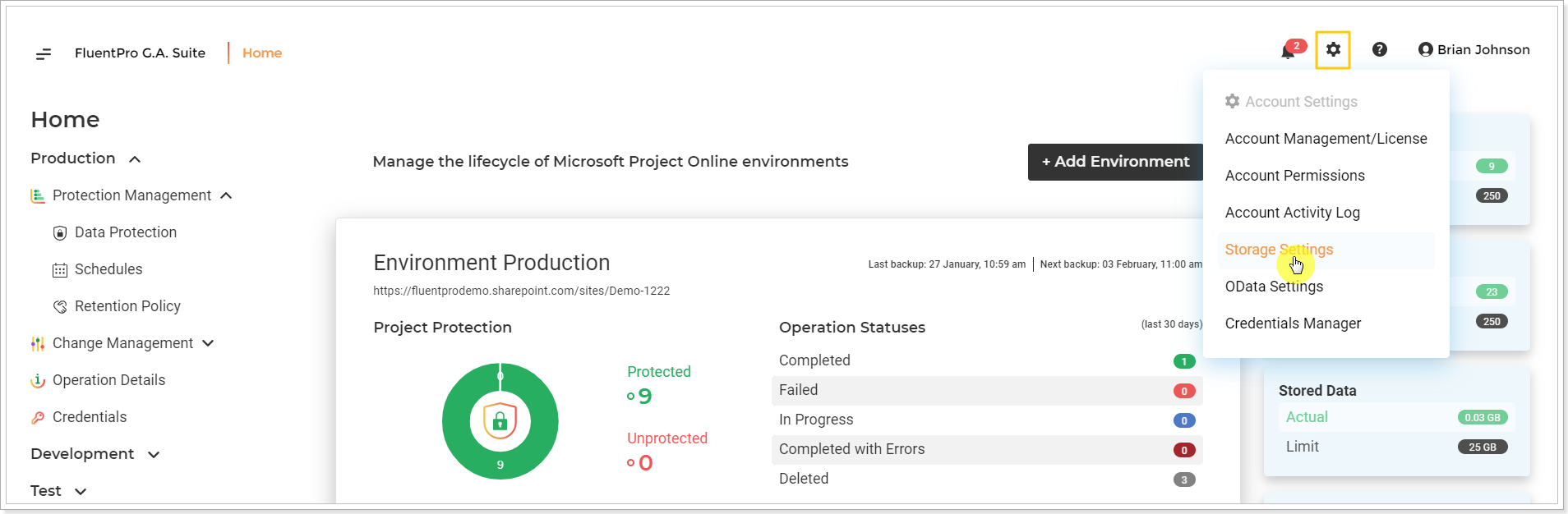
The storage settings page will be opened.
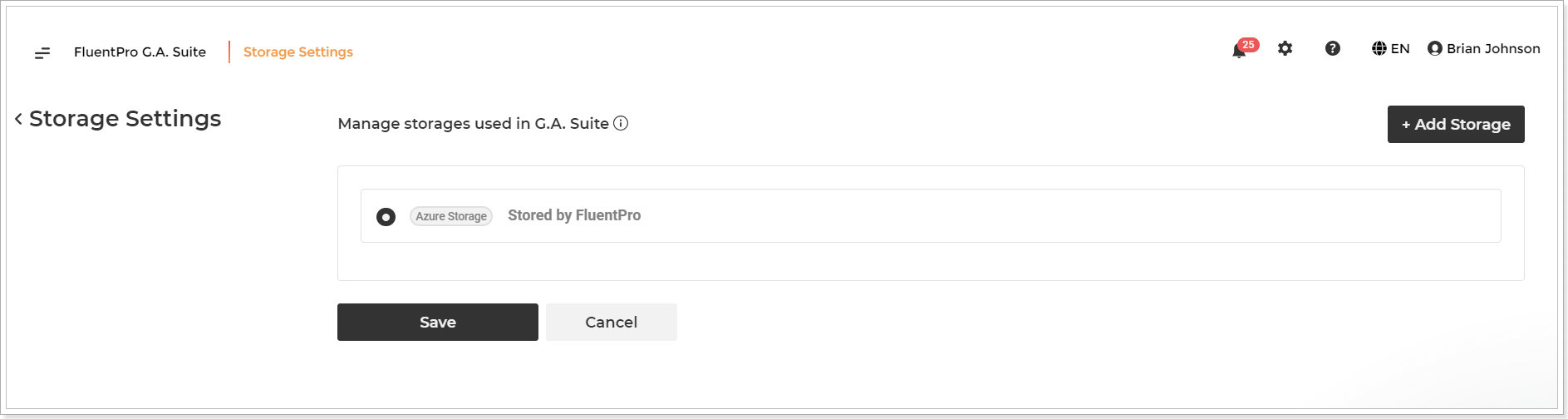
Custom storage
If necessary, you can set up the G. A. Suite service to use another custom storage. Currently, your own Azure Storage account can be added as a custom storage.
Please note: We highly recommend changing the storage through the G.A. Suite installation wizard.
Please note: Only the account owner (a user, who registered G.A. Suite) has permission to perform storage changes. Users added to G.A. Suite via the Account Permissions page are not authorized for this action by default. If a user, who is not an account owner, attempts to change storage from default to a custom one (or vice versa), they will receive an error message: "We are sorry, but you don't have permission for this action".
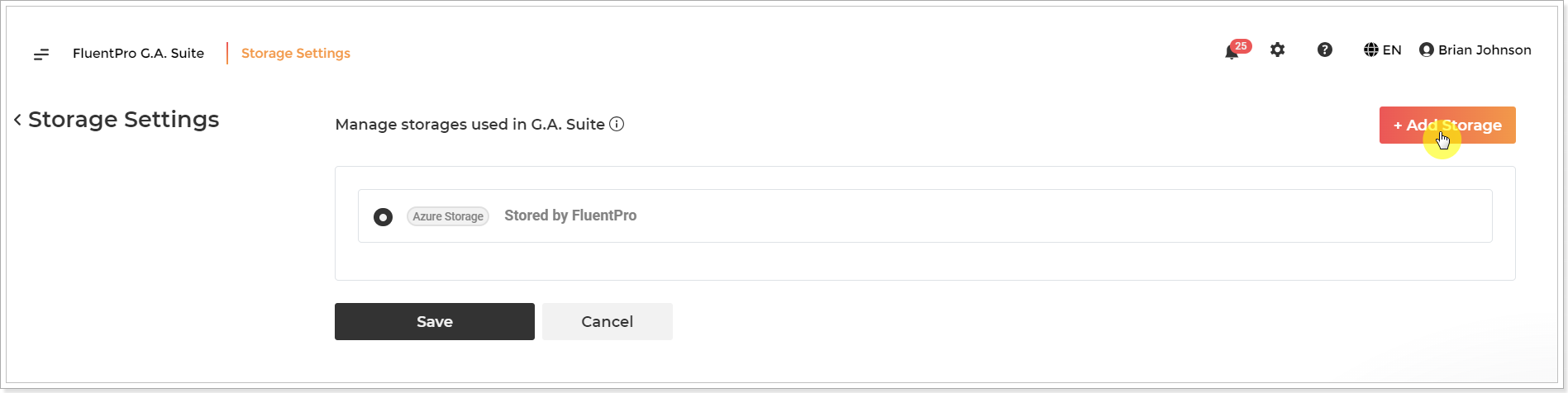
To use custom storage instead of the default one, click the Add storage button.
Please note: If you select custom storage, you should make sure that there is enough space in the storage selected to store all the data you plan to back up. Please take into account the following:
- the storage should be bigger than the size of your PWA;
- the required storage size depends on the retention policy period selected for your backups in G.A. Suite;
- the required storage size depends on the frequency of backups per day/week/month.
For example, if you have a PWA that is 200 MB in size and you back up your data every day and the retention policy is set to 10 days (the backups are stored for 10 days and then they are deleted), then the size of the storage should not be less than 2000 MB (200*1*10 = 2000).
Please note: The account used in the selected storage must have Read & Write access to the selected Storage.
To add Azure Storage to G.A. Suite, you need to provide the Account name and Access key.
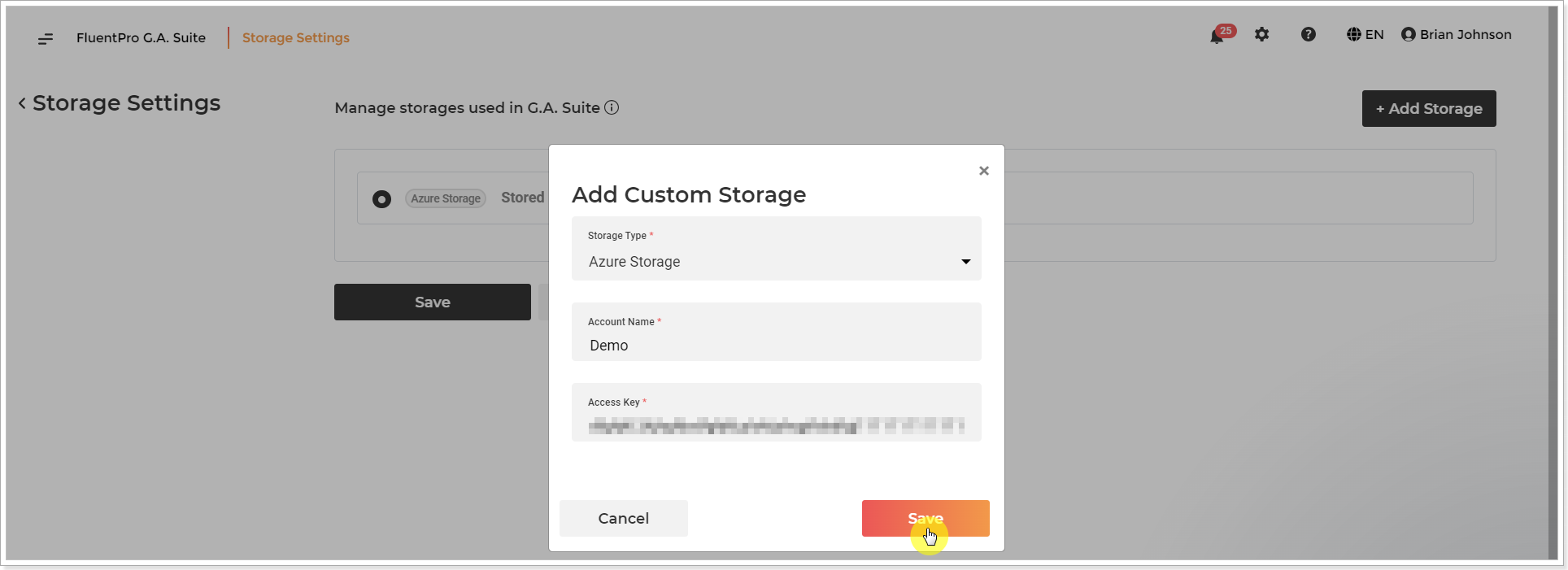
The Account Name in G.A. Suite is a storage account name in Azure Storage.
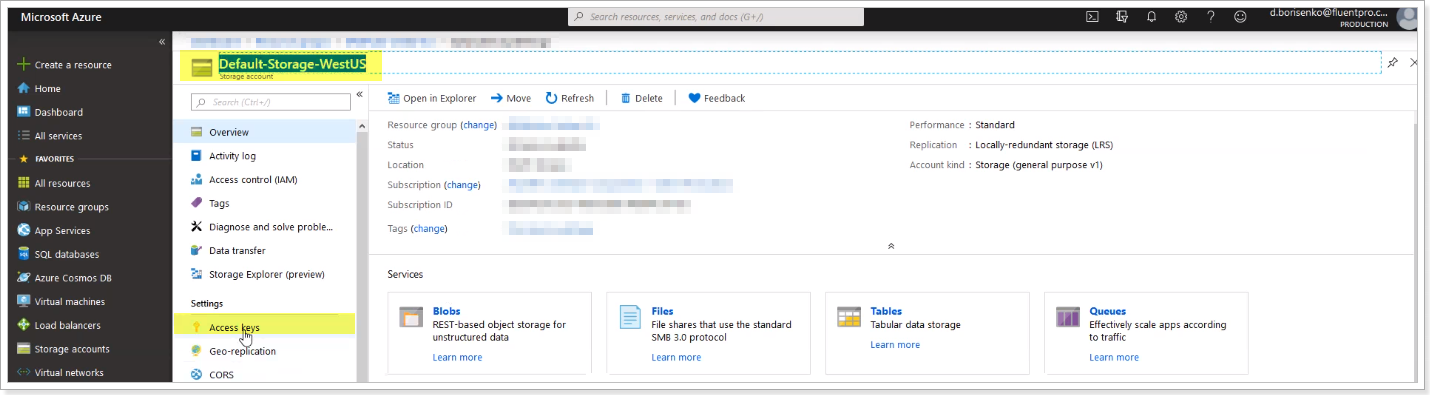
Any of the available Access keys for the selected storage account name can be copied and used in G.A. Suite.
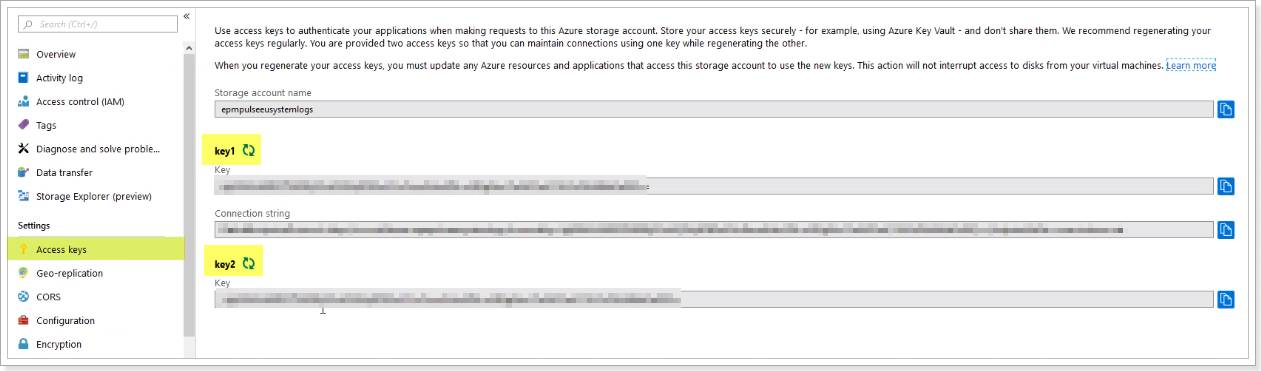
As you provide this information in G.A. Suite, click save, and the storage will be successfully added.
Click Save on the Storage Settings page, and it will be used to store your backup data.
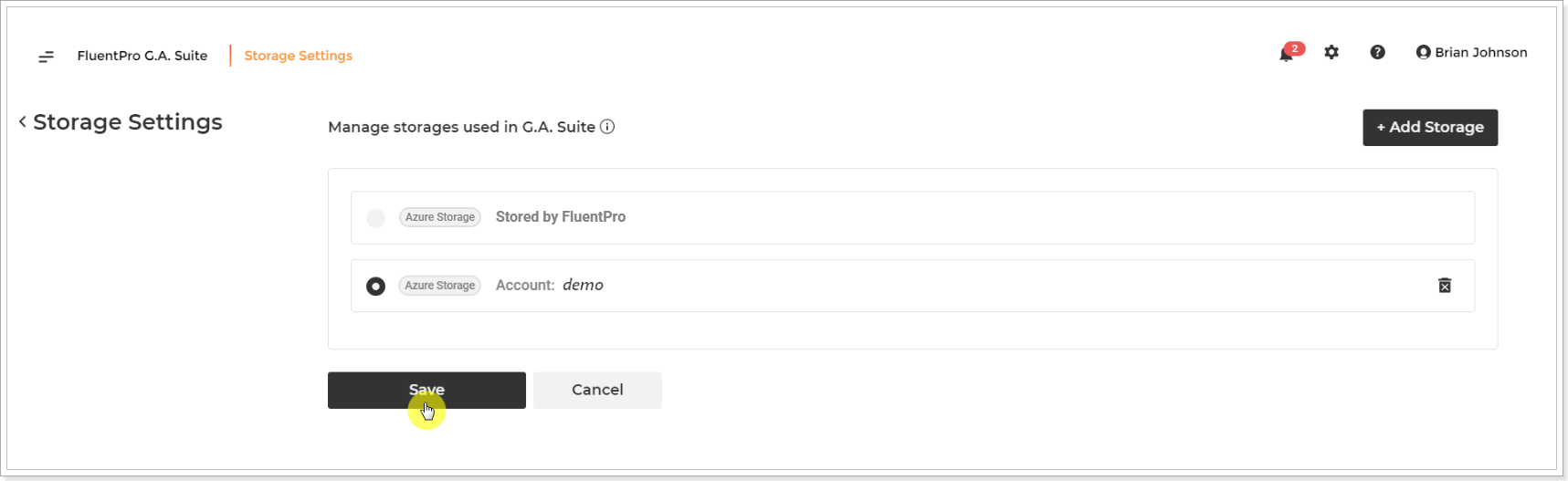
After switching to the custom storage account, we strongly recommend running an on-demand backup to ensure that valid credentials are provided and that your custom storage has connected successfully.
Please note: All the previously created backup copies, which are stored in the default Storage, will not be transferred to the new custom storage. They will continue to be saved in the default storage until they are removed according to the selected Retention Policies.
If you change the storage while the backup is in progress, the backup will be saved to the storage specified when the backup was launched. Next backups will be saved to the new storage selected.