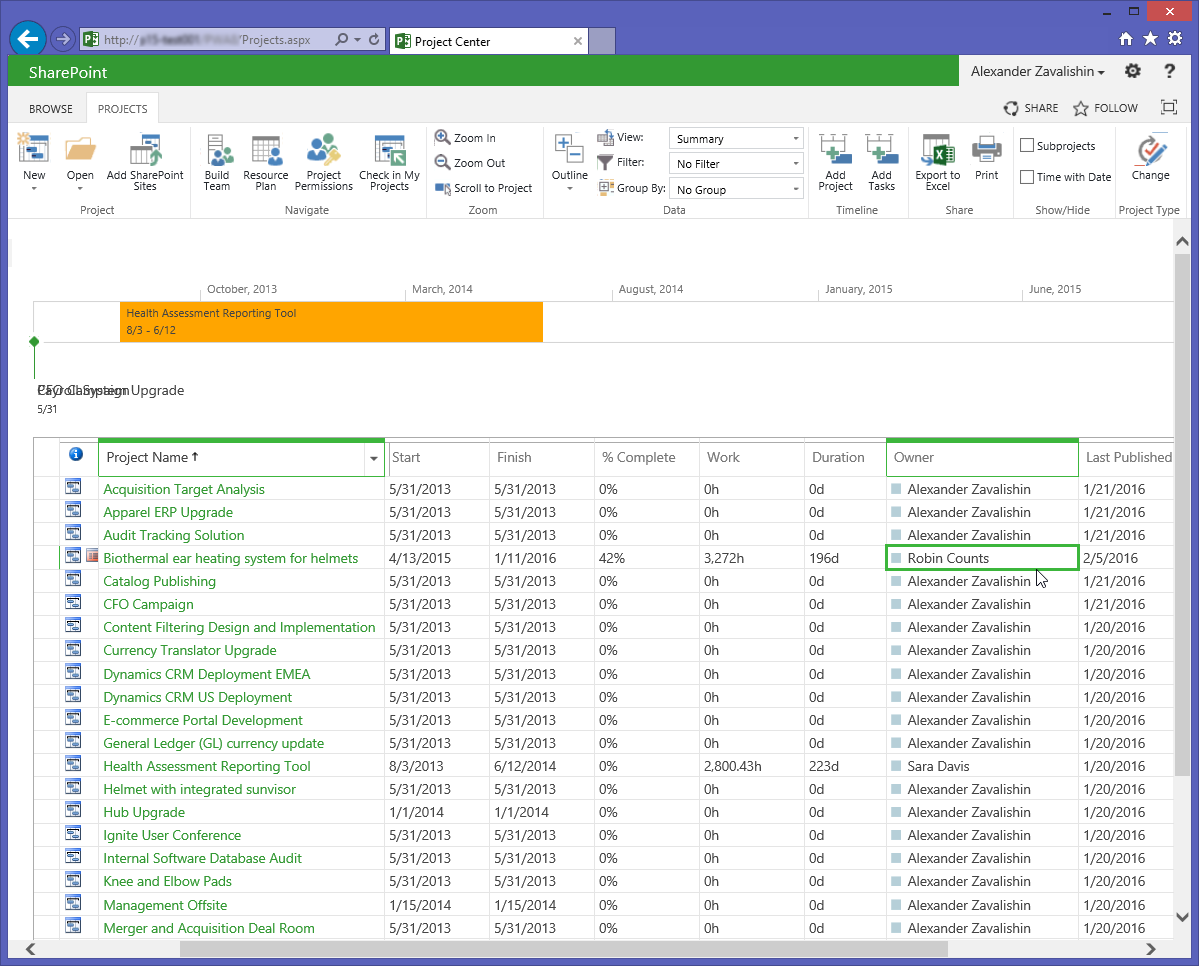
This article describes the way to change Project Owner for a number of Projects in several clicks. Applies to Project Server 2010, 2013 and Project Online.
The following steps should be performed for bulk updating Owner field:
1. Run FluentBooks and open new blank Workspace.
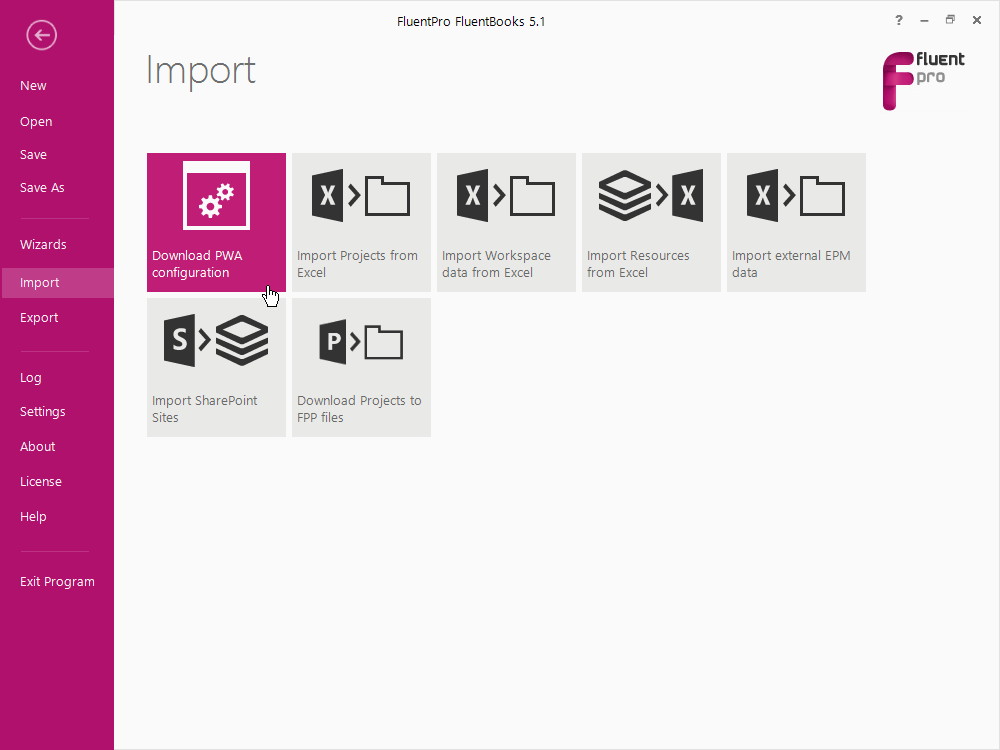
2. Run Import → “Download PWA Configuration” wizard.
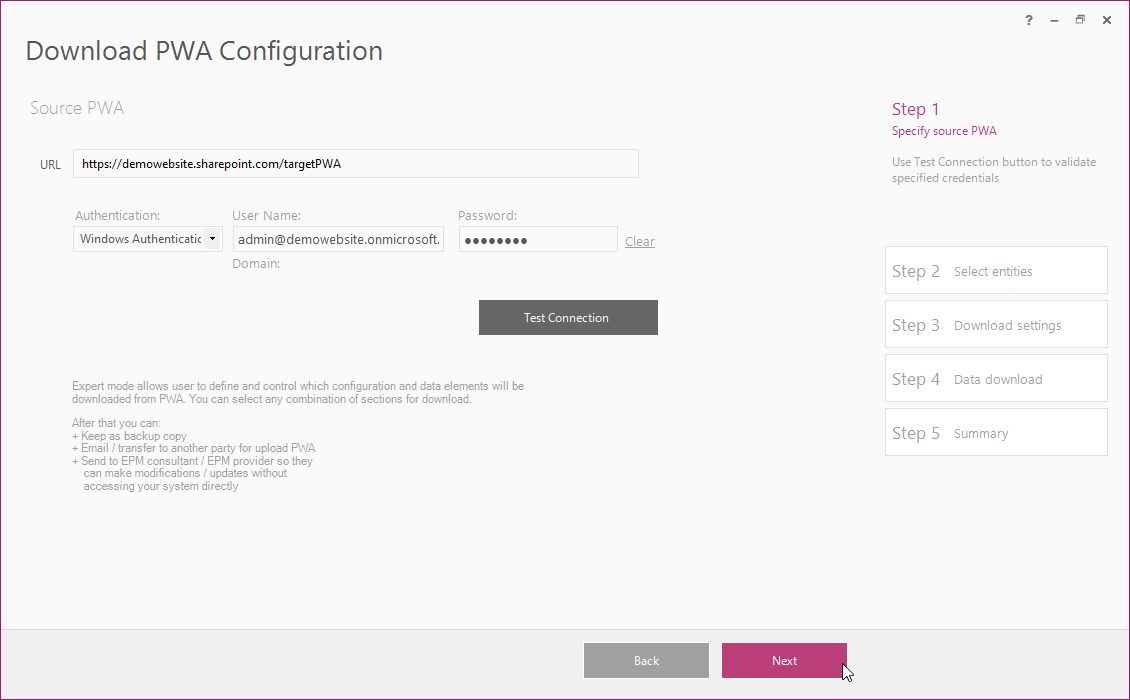
Input PWA URL, login and password. Click Next.
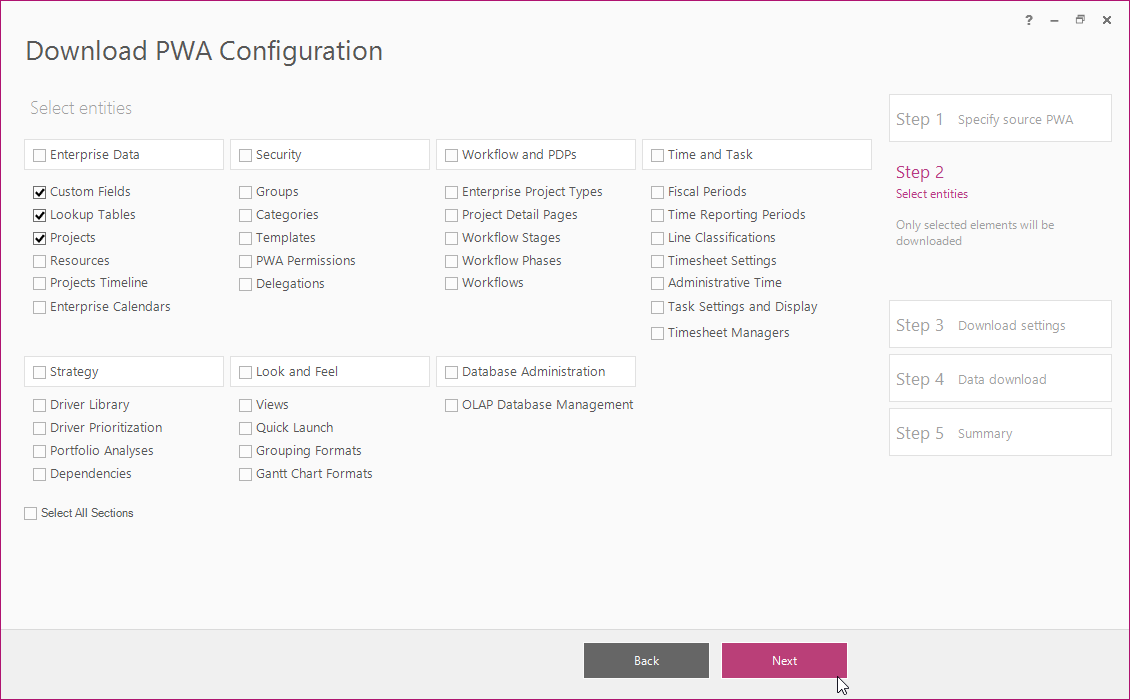
3. Select “Custom Fields”, “Lookup Tables” and “Projects” and click Next.
4. Turn On “Download Native/OOB Entities” setting and click Next.
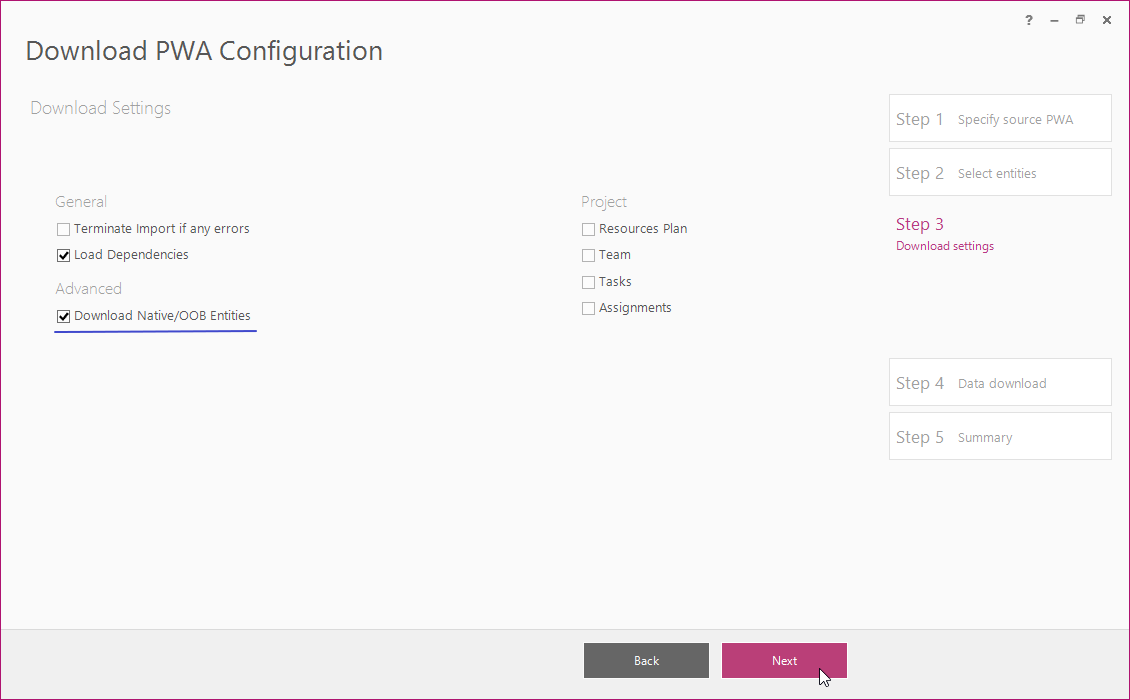
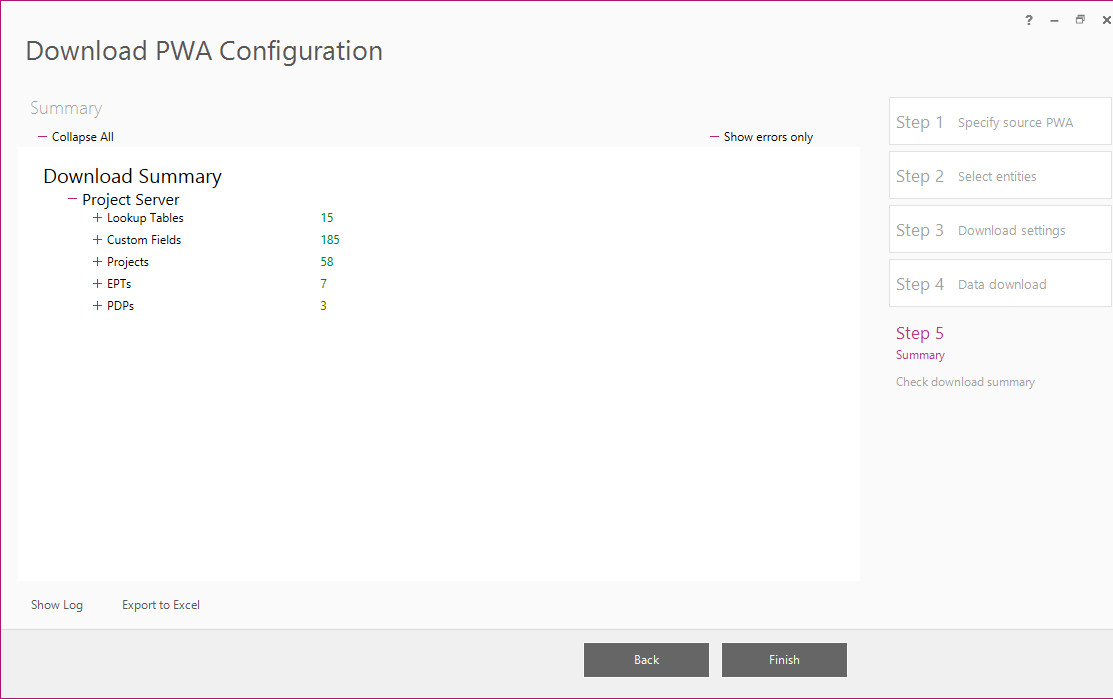
5. Wait while FluentBooks downloads the data from PWA. This may take some time depending on the amount of data. Click Close and Finish when the import is complete.
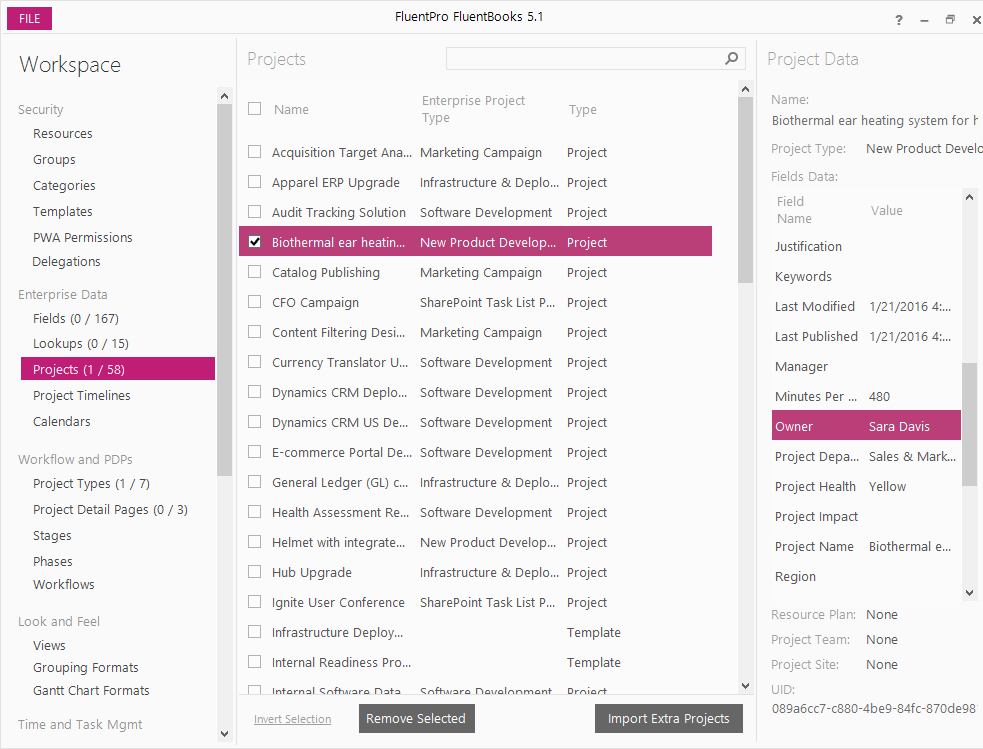
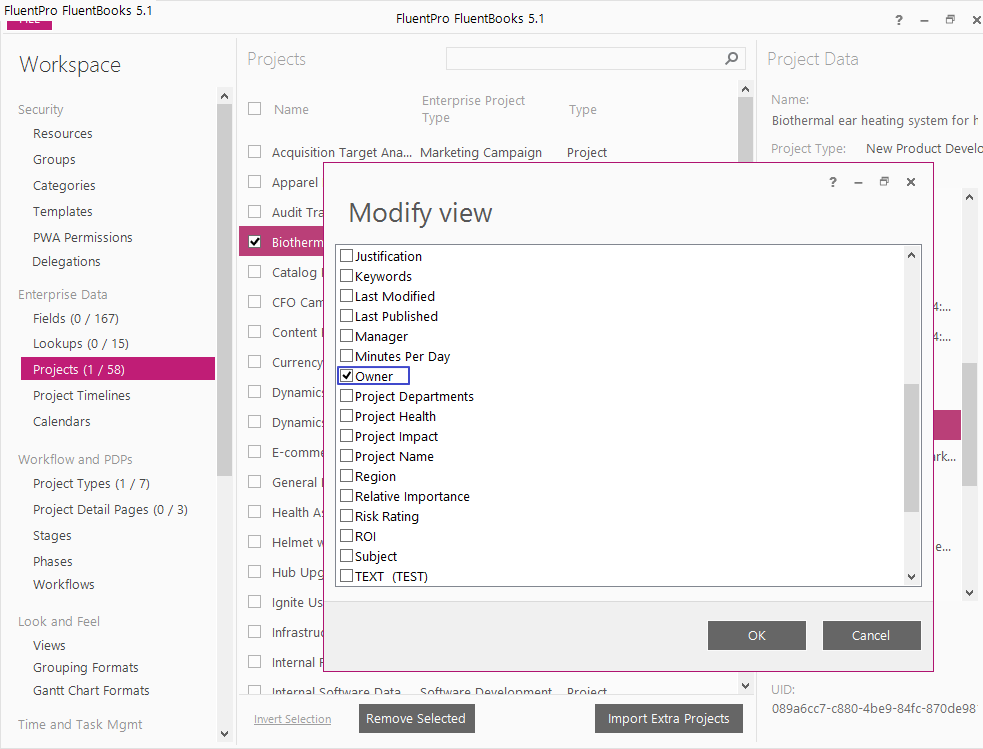
6. Navigate to the FluentBooks Workspace and open Projects table. The current Project Owner is displayed in the grid on the right. Project Owner column can be easily added to the table in the middle by right-clicking the header and modifying the view.
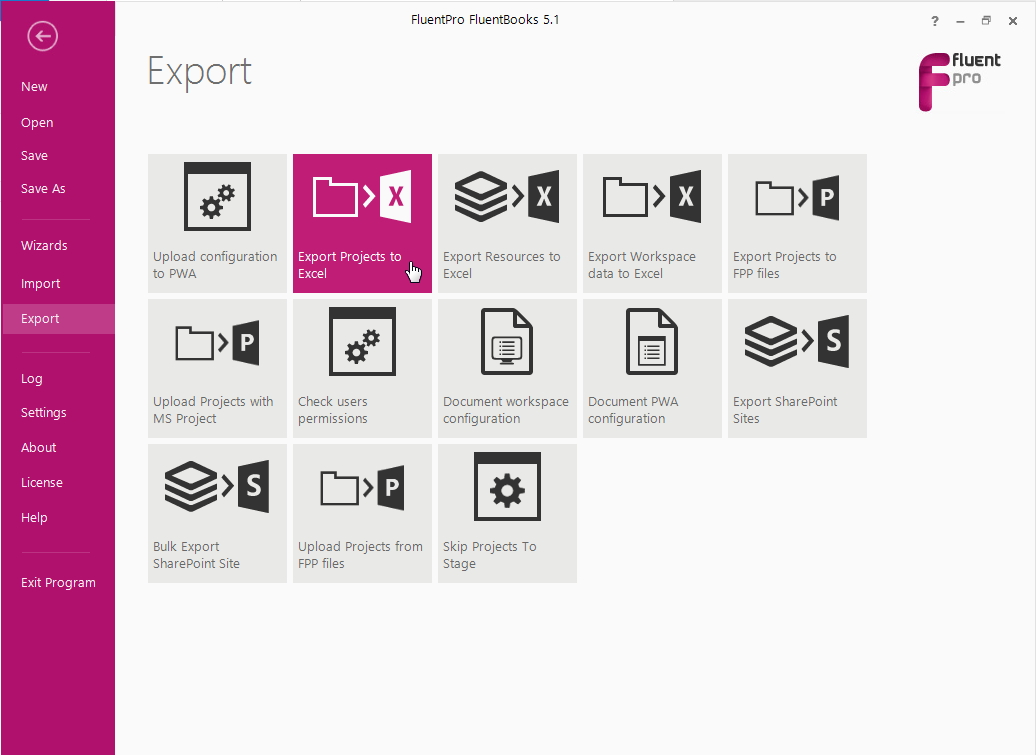
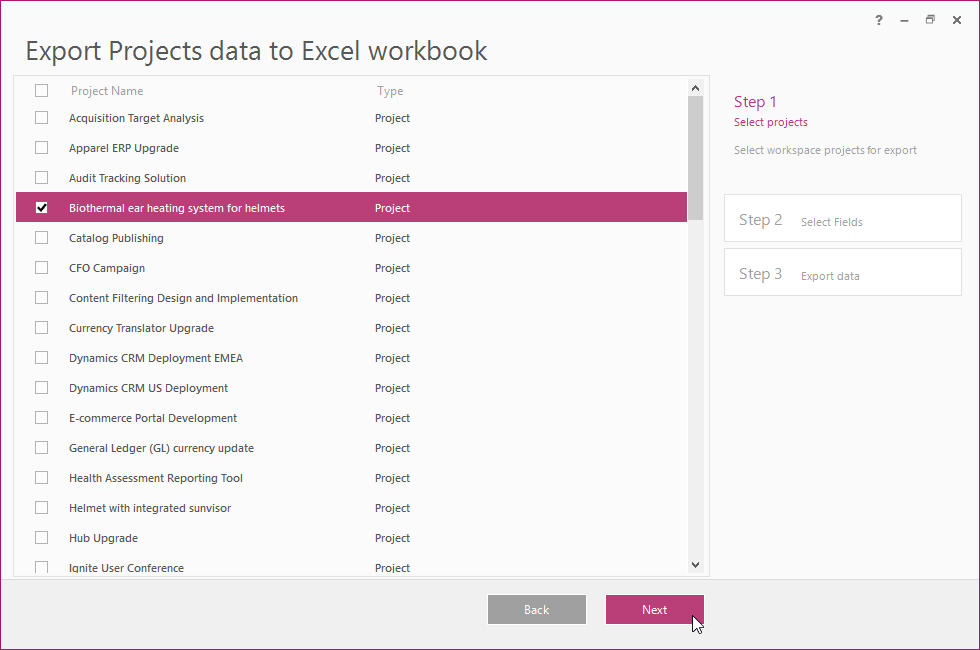
7. Run Export → “Export Projects to Excel” wizard. Select The Project(s) for edit and click Next.
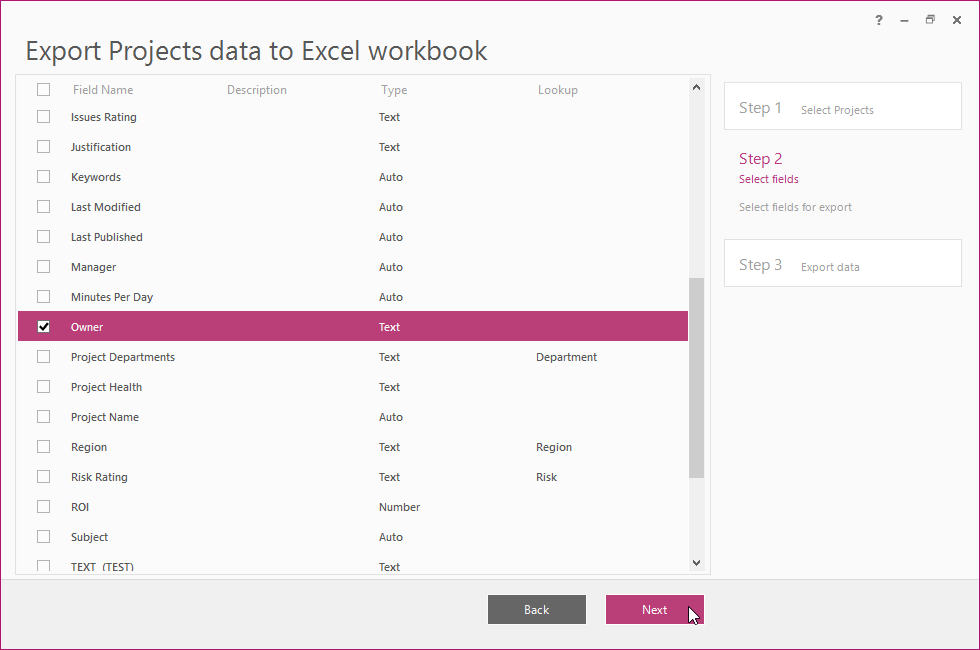
8. Select “Owner” field on the Step 2 of the wizard and click Next.
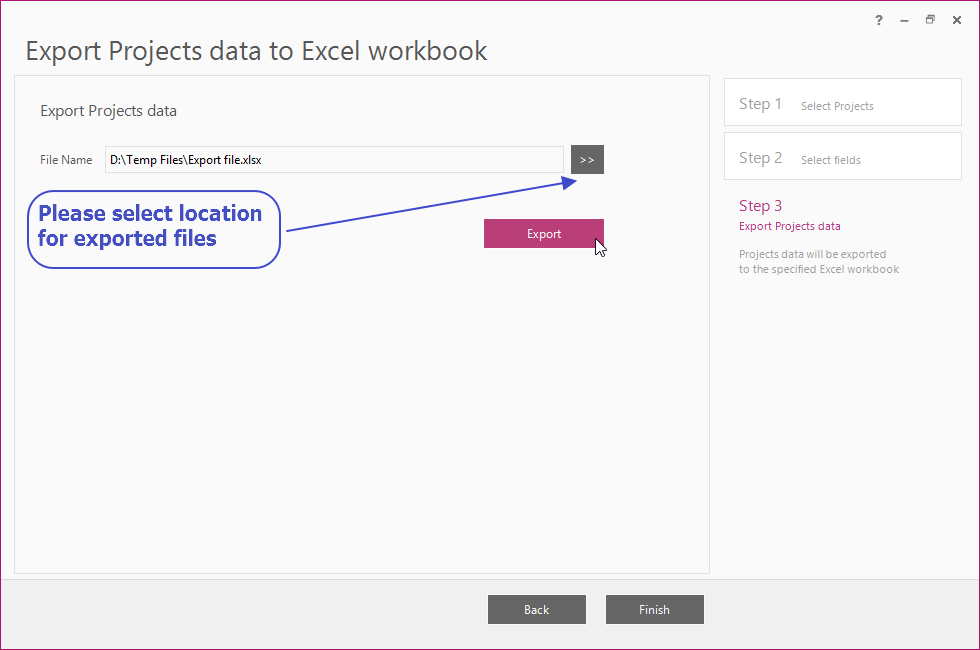
9. Provide a path to the local folder and filename for the Excel workbook and click Export button.
10. Click Close when the export is completed. The Excel file will be opened automatically.
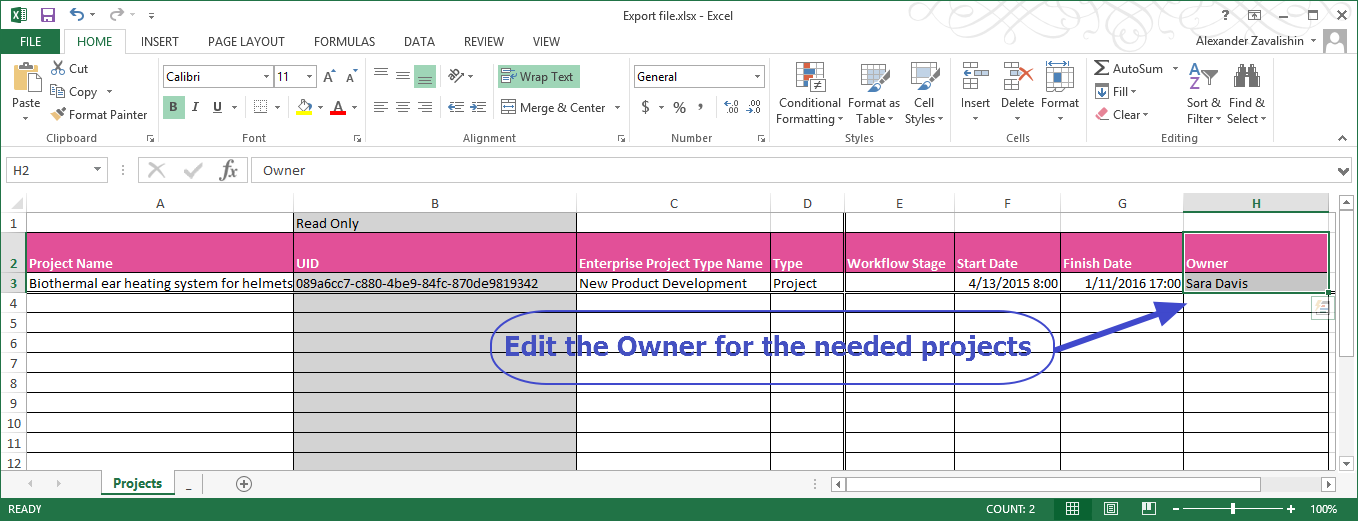
11. Edit the Owner for the Project(s). Note that the value in Owner column in Excel should exactly match the Display Name of the appropriate Resource on the PWA. Otherwize FluentBooks will fail to set the Owner to the Project and current user account will be set as Owner in this case.
The Project-level Custom Fields which does not present in the Excel file will not be overwritten in the PWA. The Fields which present in the Excel file will be overwritten with the values from Excel file.
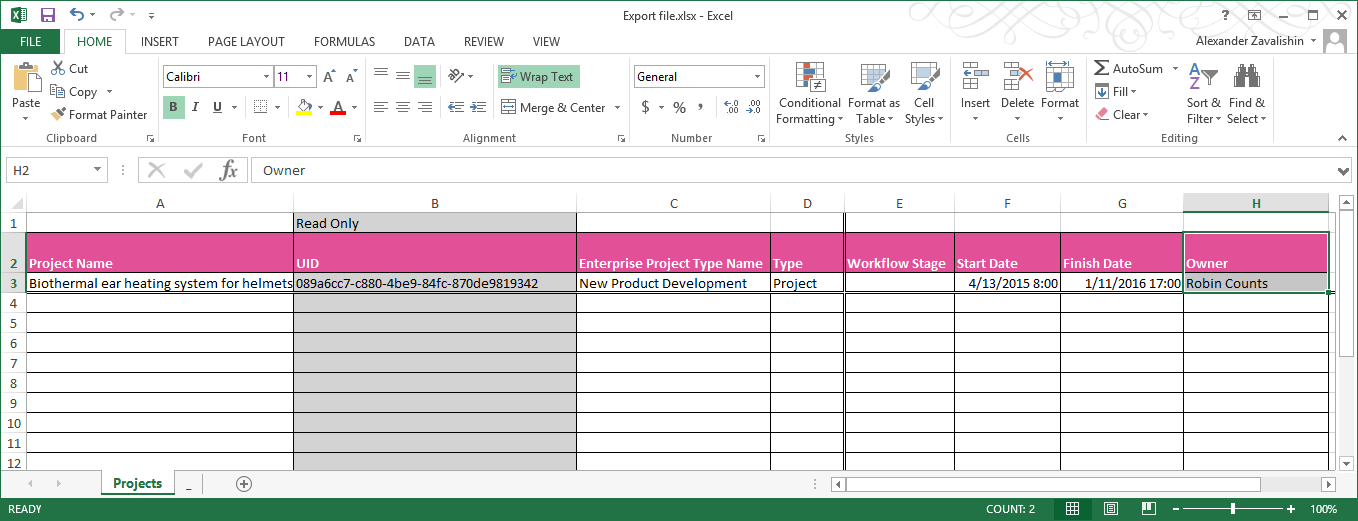
12. Save and close the Excel file.
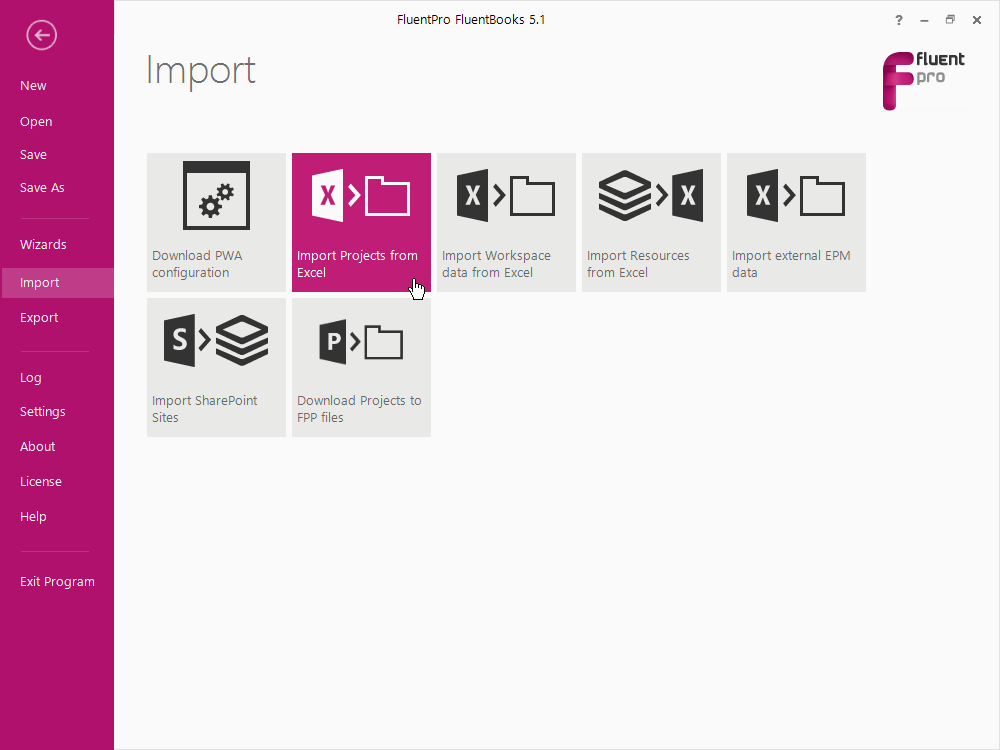
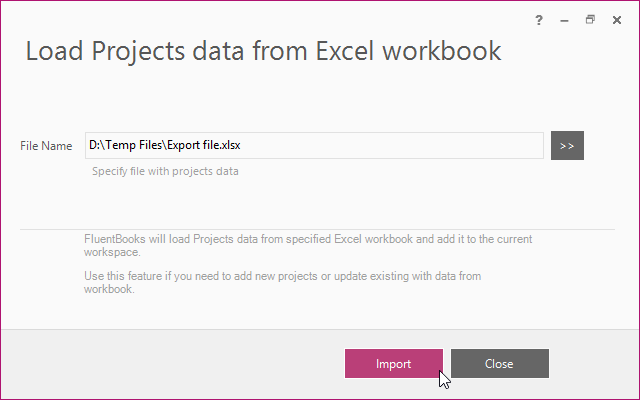
13. Run Import → “Import Projects from Excel” wizard. Pick the Excel file and click Import.
14. Review the FluentBooks Workspace. Make sure that the values for Project Owner look correct. Please note that FluentBooks does NOT validate the value for Project Owner on this step. In case invalid Project Owner has been set in Excel it will be displayed in FluentBooks Workspace but will fail to be saved to the PWA: current user account will be set as Owner in this case.
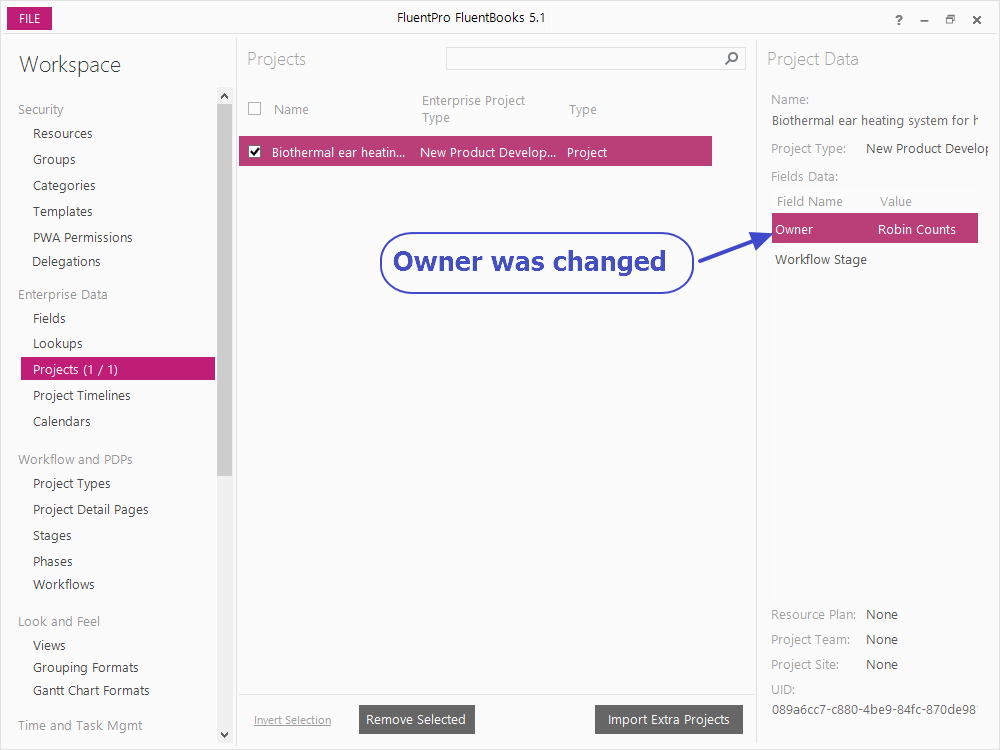
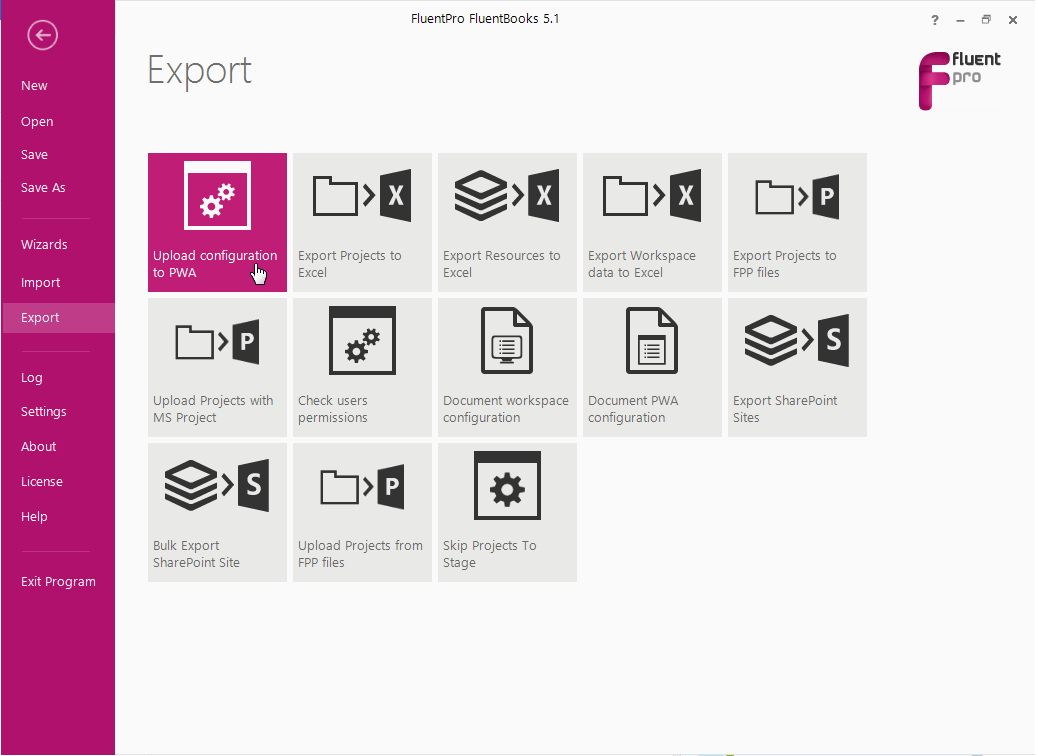
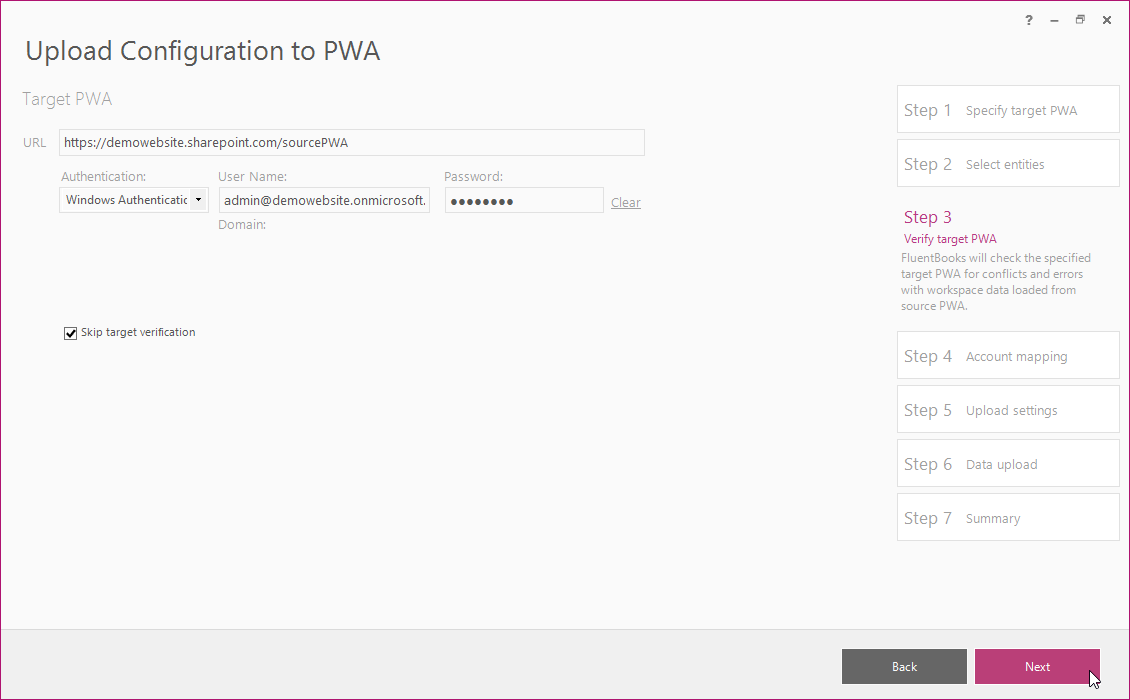
15. Run Export → “Upload Configuration to PWA” wizard.
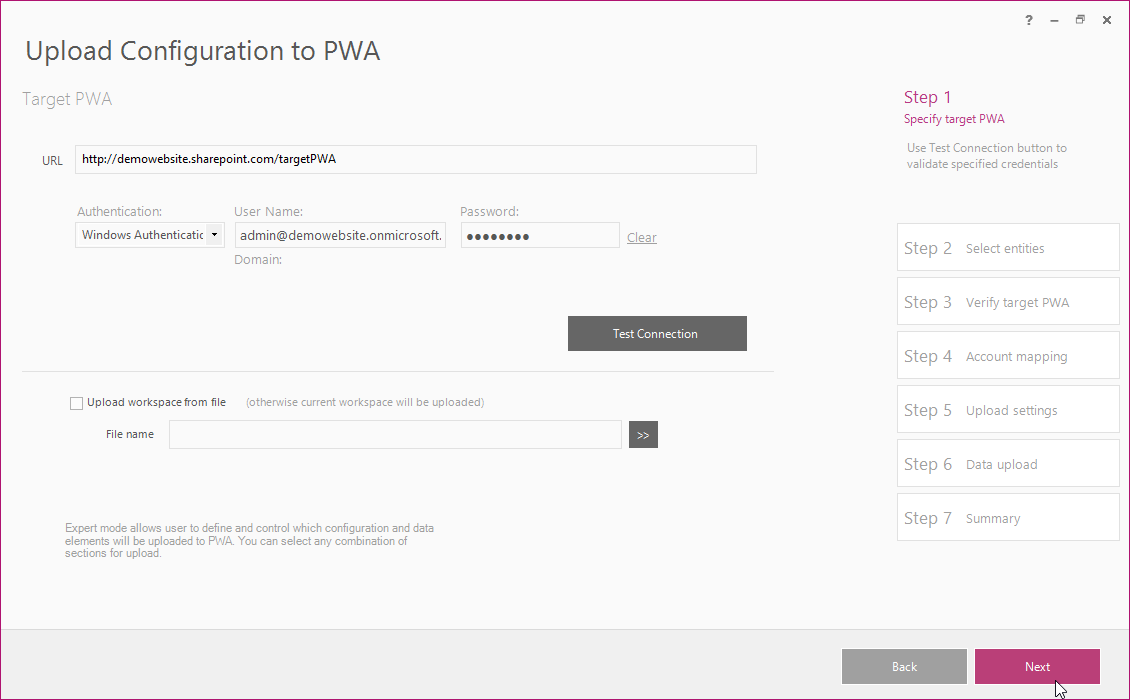
Input PWA URL, login and password. Click Next.
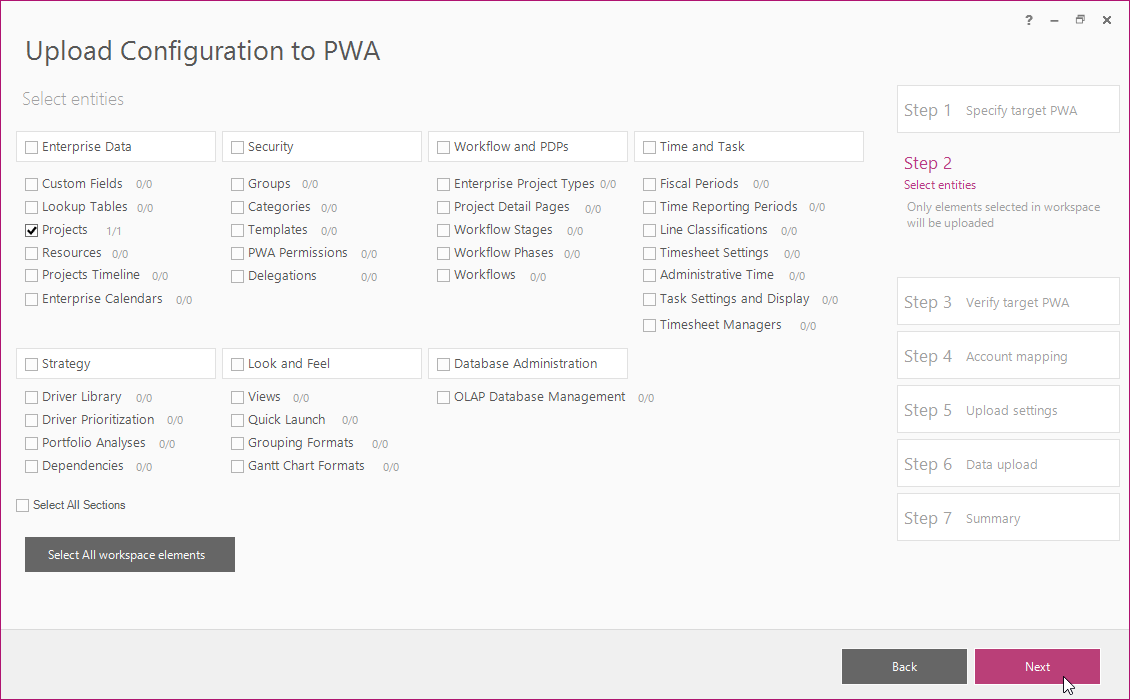
16. Select “Projects” and click Next.
17. Click Next on the Step 3 of the Wizard without any changes.
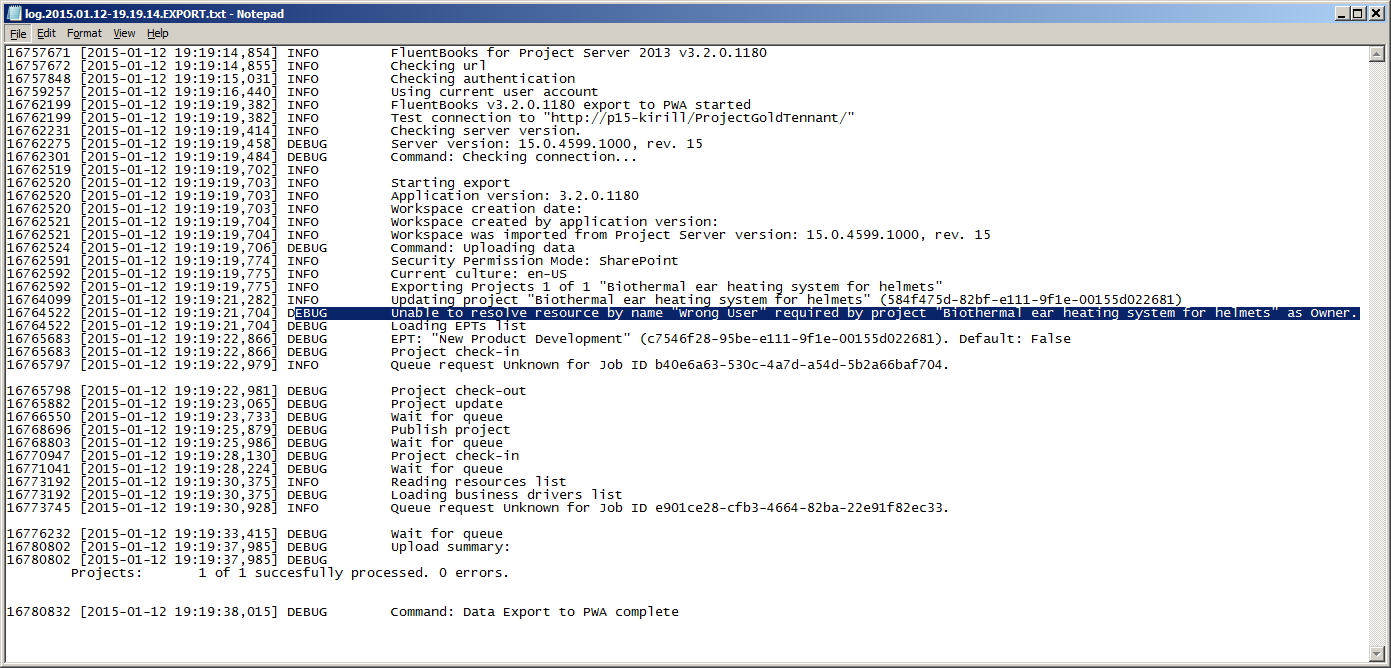
18. Wait while FluentBooks uploads the data to the PWA. This may take some time depending on the amount of data. Review the export log when the export is complete. In case FluentBooks fails to set the Project Owner the following message is added to the log: “DEBUG Unable to resolve resource by name “Wrong User” required by project “Biothermal ear heating system for helmets” as Owner”. The invalid value for Project Owner is “Wrong User” in this example. Search the phrase “Unable to resolve resource by name” in the log file in case of large amount of data.
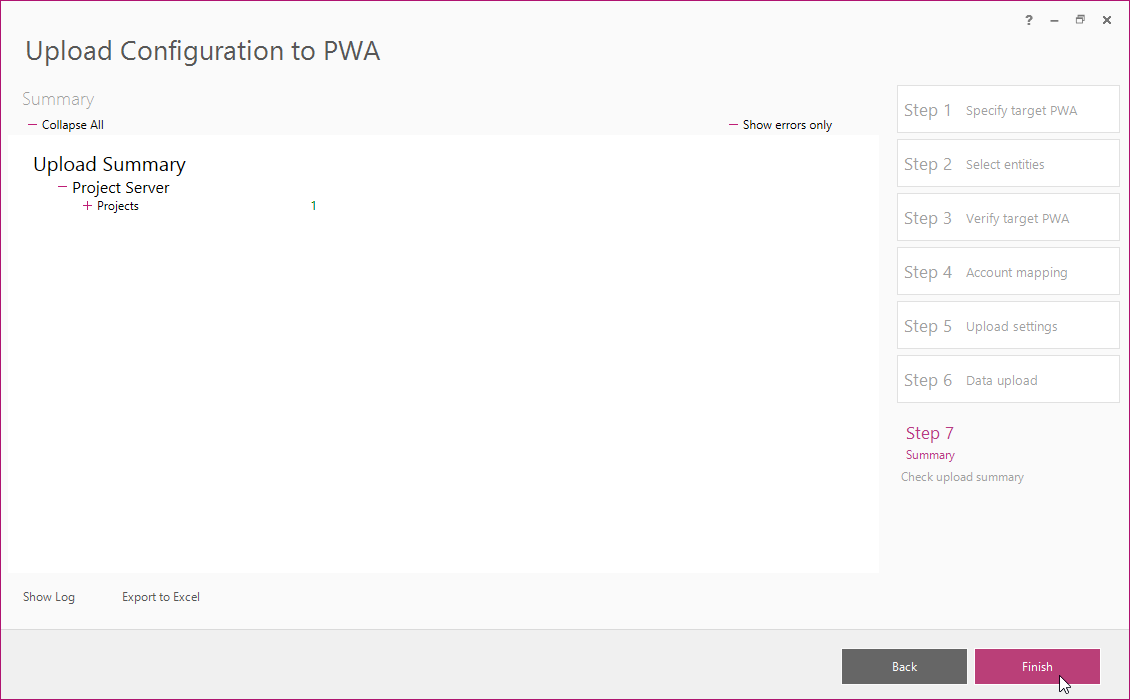
19. Click Close and Finish.
20. Navigate to the PWA and make sure that the Project Owner is correct.